 BTA F&B
Activate a POS terminal, kitchen display, or waiter device
For: Owner
Each device in your venue (POS terminal, kitchen/bar display, waiter screen, customer display, order-calling TV) is activated once. After that, staff open the device, tap their name and enter their PIN, with no password login.
Create a code in the admin page
- Go to Settings › Devices & printers, open the In-venue devices tab, and click Add device.
- The system shows a 6-digit activation code and a QR code. The code is single-use and expires after 3 minutes; you can send it via WhatsApp to the staff member at the venue.
On the new device
- On the new device, open the BTA FnB app and choose In-venue POS, or open a browser and go to kiosk.btafnb.com. All screen types use this same address.
- On the Confirm venue device screen, choose 6-digit code and enter the code, or Scan QR on the admin page, or Admin account (the owner signs in directly on the device).
- On the What is this device used for? screen, choose the device type, Name the device (for example "Counter iPad"), choose the Branch, and click Done.
- From the second POS device of a branch onward, you are also asked for the Cash handling method: Own drawer or Shared drawer with another POS device. See Opening and joining a shift.
| Device type | Used for |
|---|---|
| POS terminal | Selling at the counter, taking payment, opening and closing shifts |
| Kitchen / bar display | Shows items to prepare, tap to mark each item done |
| Waiter screen | Taking orders at the table, receiving ready-to-serve alerts |
| Customer display | Faces the customer: items, total, QR code, loyalty points |
| Order-calling screen | TV showing order numbers in progress and calling customers to collect |
Manage activated devices
The In-venue devices table lists every device: type, branch, who is using it, and last activity. Click Edit to change the name, screen type, or branch; Sign out to remotely sign out the person using the device; Remove when you retire a device.
Change the screen type, move a device to another venue
The lock screen of a POS terminal, kitchen display, or waiter screen (the screen where staff pick their name) has 2 buttons: Change screen and Use for another venue.
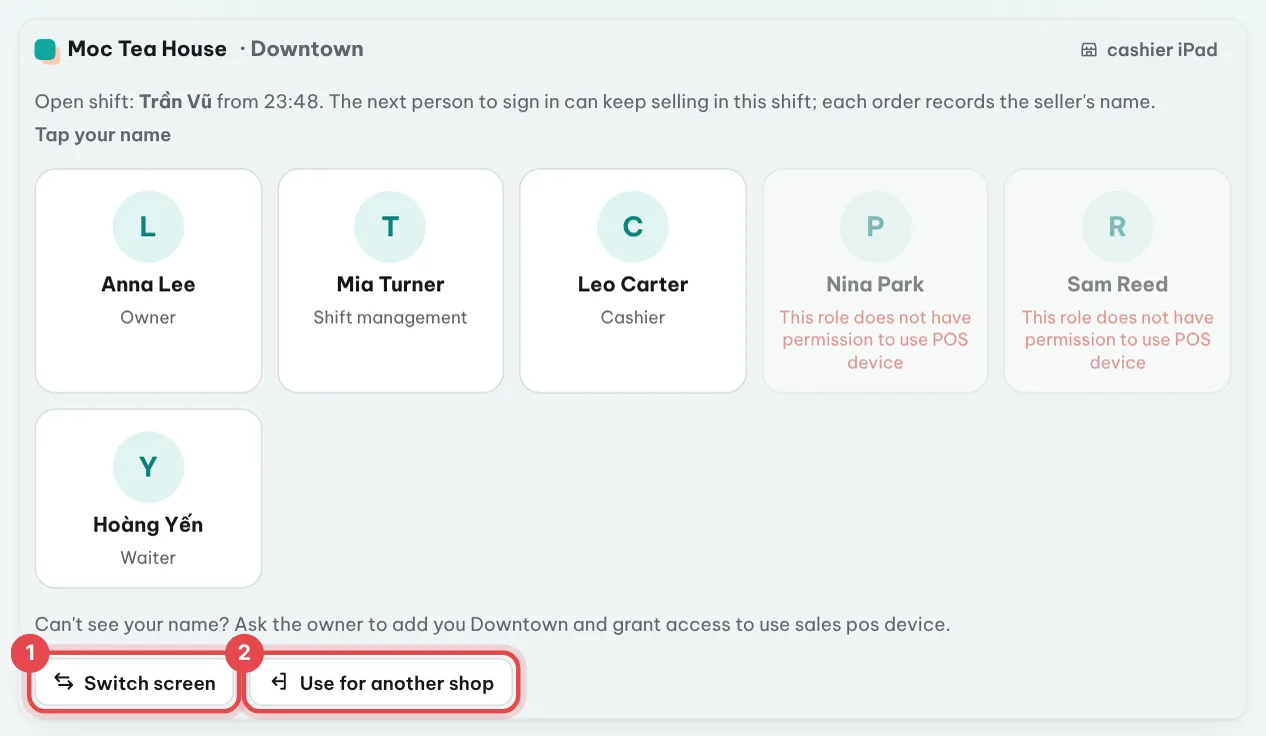
- Change screen: a person with the Configuration: Devices permission enters their PIN, then chooses another screen type for the device (POS, kitchen, waiter, customer display, order-calling screen). You can also do this on the admin page: Store settings › Devices & printers, click Edit on that device.
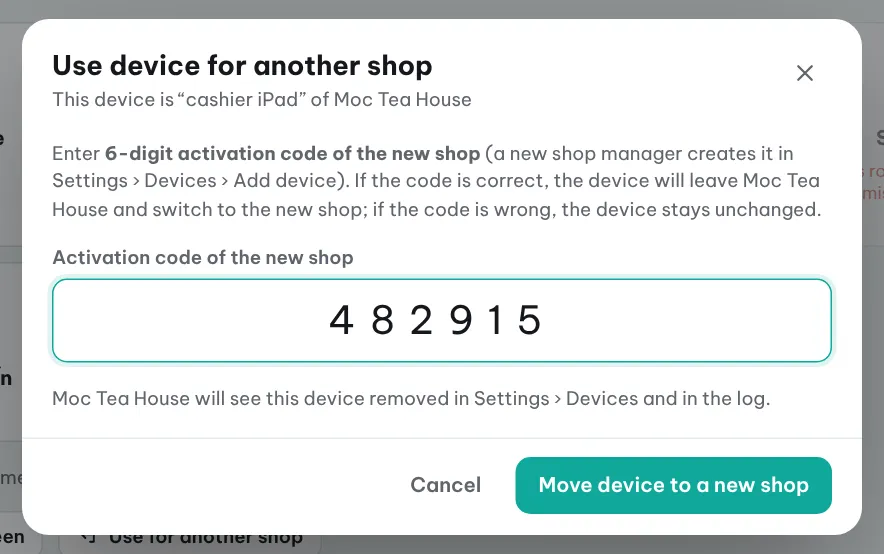
- Use for another venue: enter the 6-digit activation code of the new venue. If the code is correct, the device leaves the old venue automatically and goes to the screen type step of the new venue; if the code is wrong, the device stays as it is. The old venue sees the device removed in its device list and activity log. Alternatively, the old venue removes the device in Store settings › Devices & printers, and the device returns to the activation code screen by itself.
- Customer display and order-calling screen show no buttons (to prevent customers from tapping them by accident): tap the top-left corner of the screen 10 times in a row (no more than 2 seconds between taps) to bring up the panel with the 2 buttons above. A few taps or a long press has no effect; the panel closes by itself after 30 seconds without input.
Still stuck? Message us on WhatsApp. WhatsApp