 BTA F&B
Opening a shift, joining a shift
For: Cashier
A cashier shift tracks the cash in the drawer: opening cash, cash sales, cash added, and expenses / withdrawals. If a POS device has no shift yet, it asks you to open one before you can sell.
Opening a shift
- On the POS device, tap your name and enter your PIN.
- The device asks you to open a shift: enter the Opening cash (the small change you have left in the drawer) and confirm.
- The top of the sales screen shows the cashier's name and the time the shift was opened.
Joining a shift
A second person switches user on the same device: they keep selling in the open shift, and no new drawer is opened.
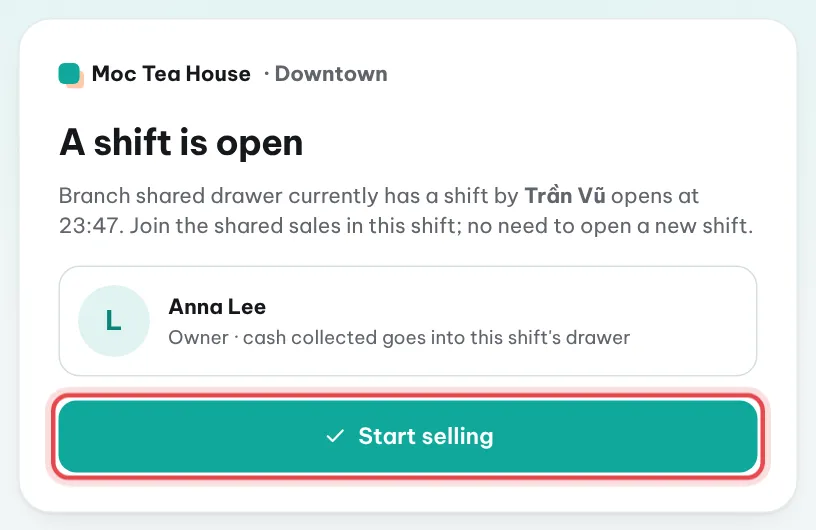
If the POS device shares a drawer with another device and that drawer already has a shift opened by someone else, the device shows Shift already open (which drawer, who opened it, and at what time). Tap Join sales to sell in that shift. You do not enter opening cash and no new shift is opened. If you opened the shift yourself, the device goes straight to the sales screen.
Separate drawer or shared drawer
Each POS device handles cash in one of two ways:
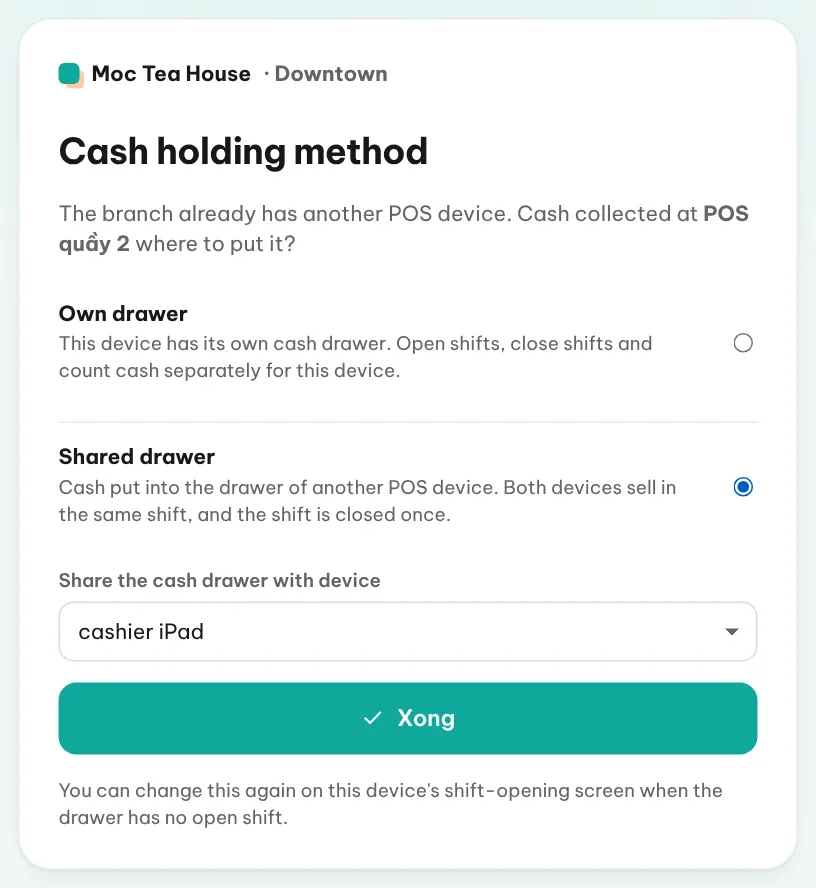
- Separate drawer: the device has its own cash drawer. Opening the shift, closing the shift and counting the cash are done separately for this device.
- Shared drawer: cash goes into the drawer of another POS device at the same branch. Devices sharing a drawer sell in one shift and close it once.
Choose directly on the POS device:
- The first POS device of a branch automatically uses a separate drawer, without asking.
- From the second device on, right after activation the device asks for the Cash handling mode: Separate drawer (selected by default) or Shared drawer, and then asks you to pick the POS device to share with. The list shows every other POS device of the branch; a device that already shares another device's drawer is labelled "sharing drawer with …", and choosing it puts you in that same drawer.
- To change it later: on the Open sales shift screen of that device, on the Cash handling line, tap Change (the drawer in use must not have an open shift). If the signed-in user does not have permission, the device asks for a Manager PIN approval; the approver must be the owner or have one of these permissions: Cash book settings, Branches, Devices.
To see which device holds which drawer, go to Settings › Devices & printers, section Cash drawers & cashier shifts.
Still stuck? Message us on WhatsApp. WhatsApp