 BTA F&B
Waiter screen
For: Waiter
Waiters use a phone that has been activated as a Waiter screen, then tap their name and enter their PIN.
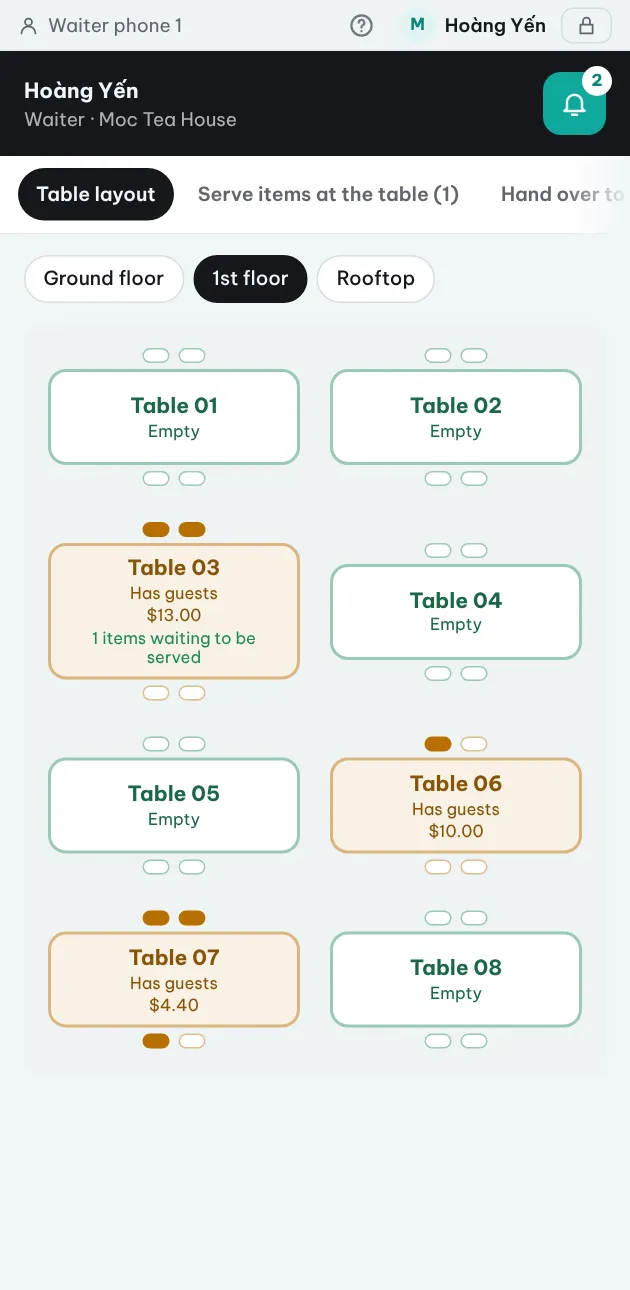
On computers and wide tablets, the floor plan and item lists are arranged in multiple columns.
Tabs
- Floor plan: tables by area, showing the table shape and number of seats. Statuses: Available, Occupied with the amount due, Items ready to serve, Awaiting payment, Done · frees up in N′ (fully paid, all items served, waiting for the table to clear automatically). A reserved table whose guests have arrived but not yet ordered also shows Occupied.
- Serve at table: drinks and dishes that are ready and need to be carried to a table / pager number.
- Hand to takeaway customer, Hand to courier: finished orders waiting to be handed over.
- Served items: items that have been carried out.
Taking an order at the table
- On the Floor plan, tap a table (or a pager number). An available table opens the item selection page directly; an occupied table opens the table page, where you tap Add items.
- On the item selection page, choose a category and tap an item to add it. The bottom of the screen always shows a View order (number of items) bar and a Send to kitchen button, so you don't lose them while scrolling the item list.
- Tap View order to open the cart: review items, remove items, turn Pay later on or off. Tap again to collapse it.
- Tap Send to kitchen. Pay-later orders are added to the table's bill.
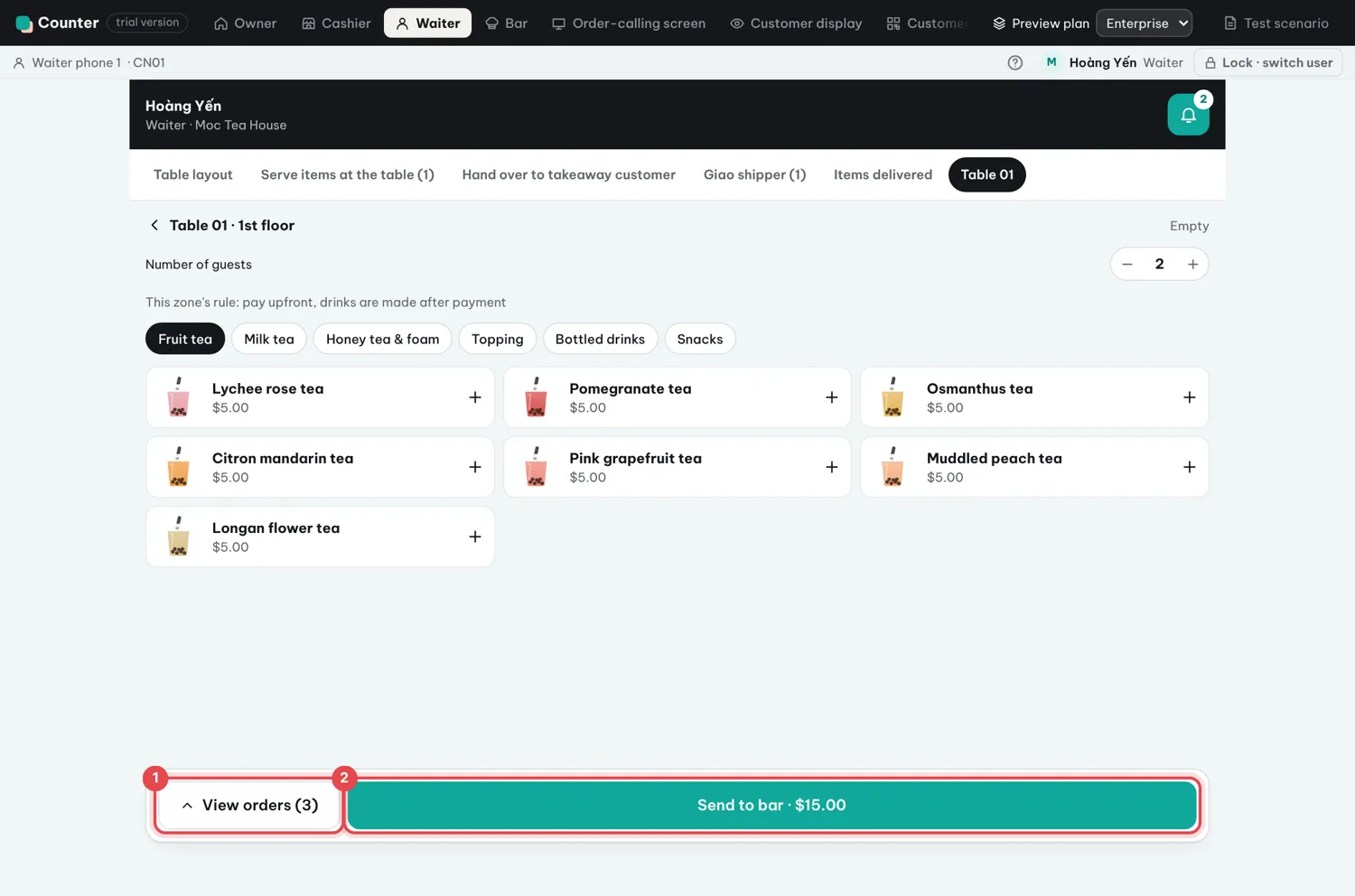
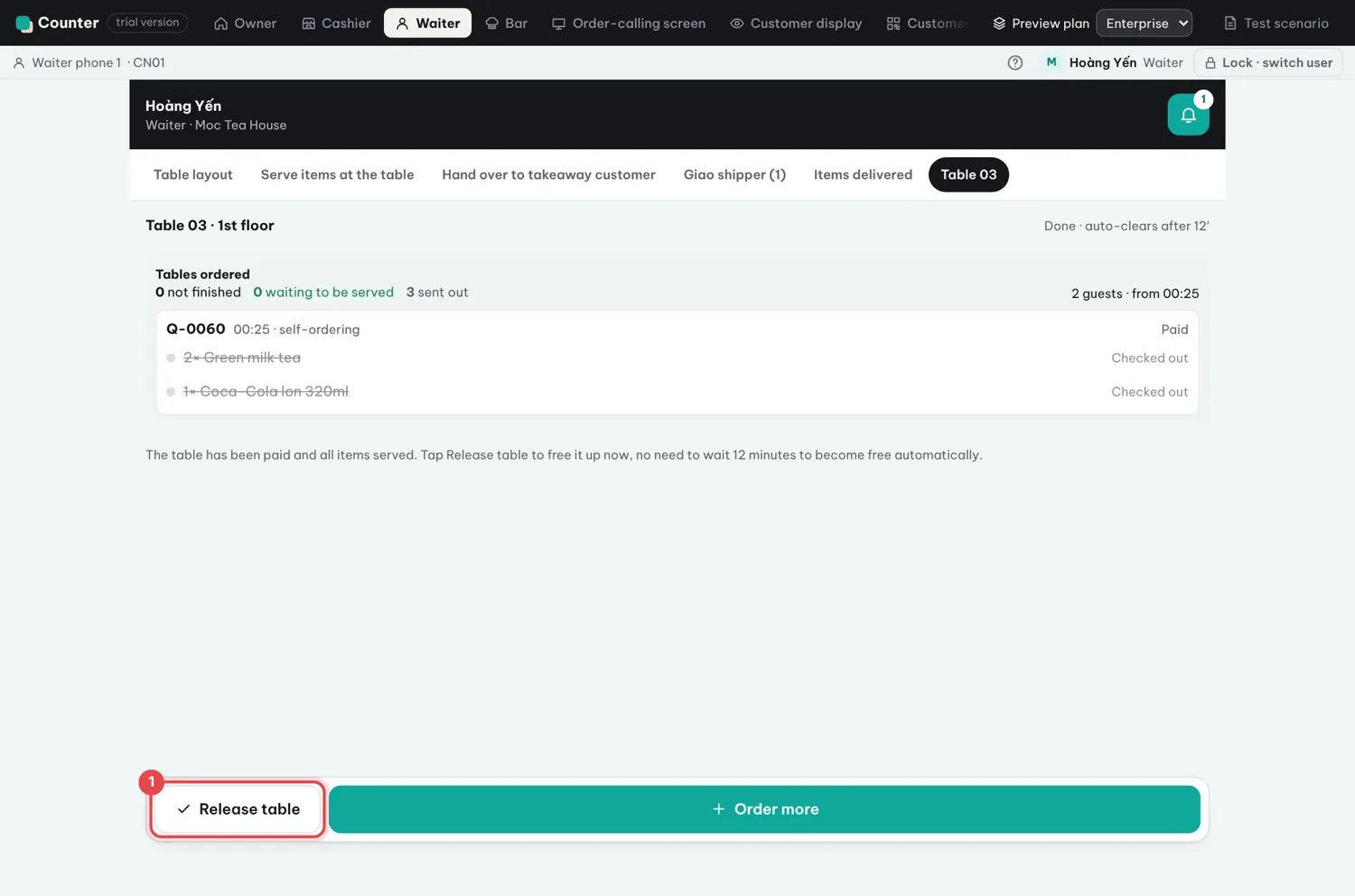
Table page
Open an occupied table to see which items have been served and which have not. The main buttons are at the bottom of the screen:
- Add items: opens the item selection page.
- Checkout: collect payment for the table's bill (when the venue lets waiters take payment).
- Clear table: appears when the table is fully paid and all items have been served. Tap it to set the table to Available immediately, without waiting for it to clear automatically.
Serving items and collecting payment
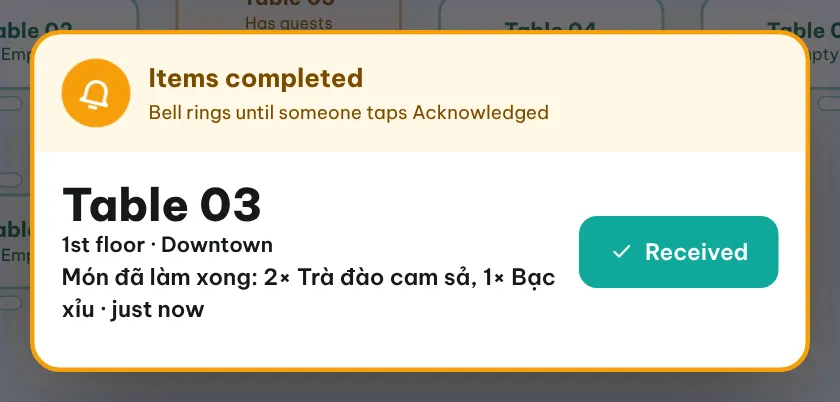
- When the bar / kitchen marks an item as done, or taps Complete order, on a table order (or pager order): the waiter's phone rings and shows an Items ready panel with the table name, area and the items just finished. The ring continues until someone taps Received; once one person accepts, the other devices stop ringing.
- If the kitchen finishes more items for the same table before anyone has accepted: the items are merged into the same line. Carry the items out and tap Served, and the alert turns off automatically.
- The Notifications tab still lists the items that need to be carried out.
Who gets the ring: Store settings › Notifications › Items ready (default: the waiters of that branch). If the venue has no waiters, add cashiers to the recipient group so the POS device rings. Turn this option off and nothing rings. Takeaway and delivery orders do not ring (they already have the order call screen and vibrating pagers).
- When guests are leaving: open the table and collect payment (split evenly or by item is supported) as with a table bill, then clear the table.
Still stuck? Message us on WhatsApp. WhatsApp