 BTA F&B
Add and edit items
For: Owner
Go to Menu, click Add item (or click an existing item to edit it). The top of the page summarizes the number of made-to-order items, ready-made goods, toppings and average food cost.
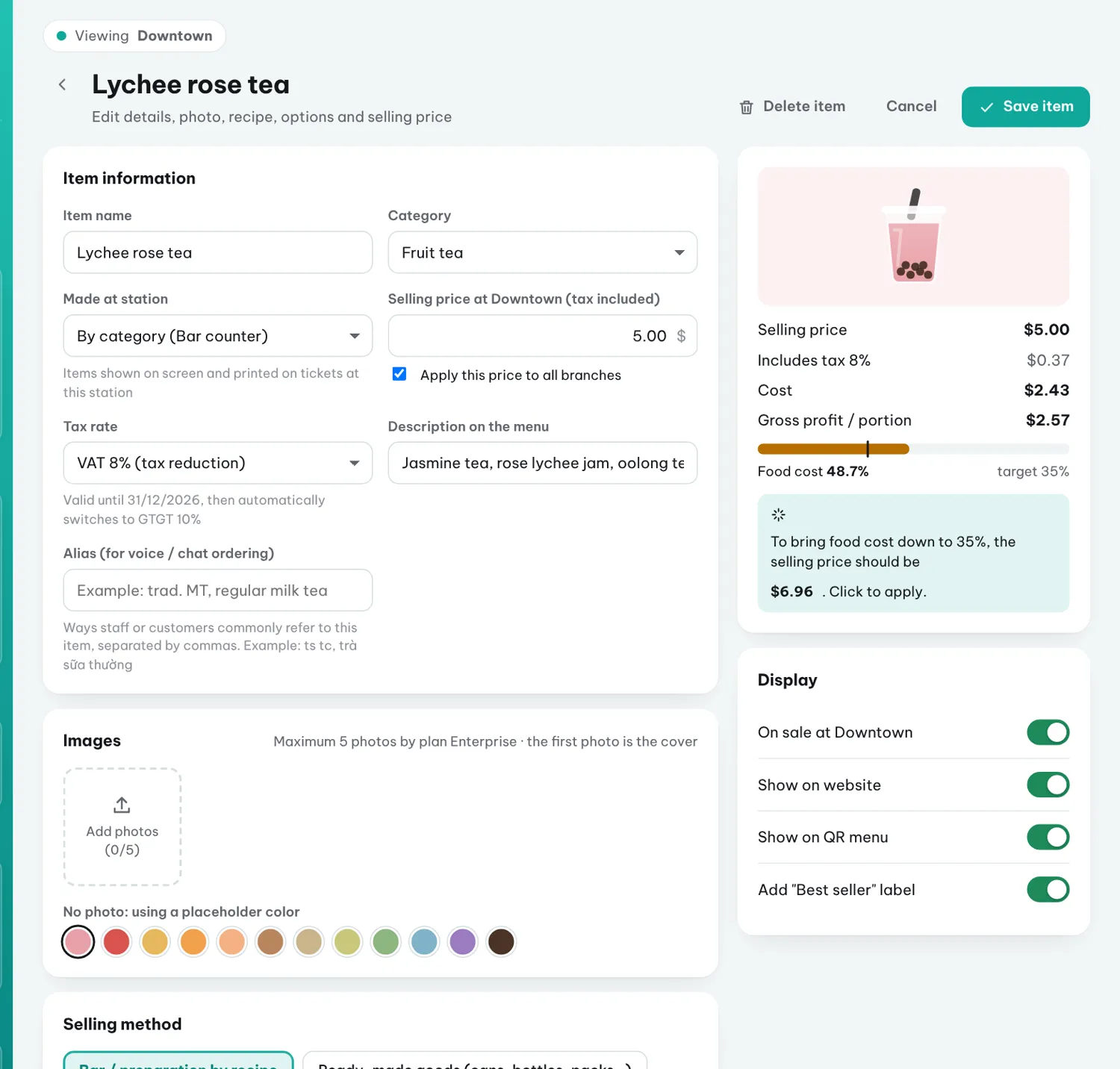
Item information
- Item name, Category, Prepared at station (when your venue has several stations).
- Selling price. For venues with multiple branches: tick Apply this price to all branches, or set a separate price for the branch you are viewing.
- Tax rate, Points earned per item (when points are earned per item).
- Menu description: shown on QR and the website.
- Alternative names (voice / chat ordering): the names staff and customers commonly use for the item, separated by commas, for example
ic tea, iced milk tea. - Images: add photos of the item (the number of photos per item depends on your plan). If there is no photo, a colored placeholder is used.
Remove the background from item photos
Item photos with the background removed (transparent background) stand out on the website, especially on the new website templates.
- Open the item, and in the Images section click the sparkle icon on the photo.
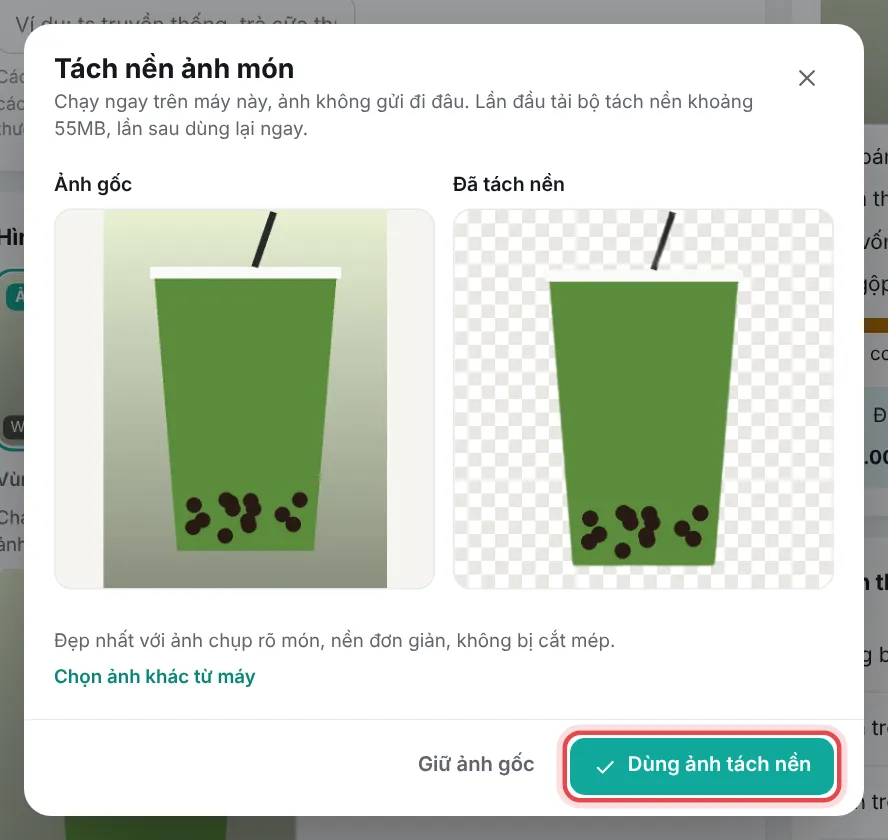
- The first time, your device downloads the background-removal tool (about 55MB); after that it is reused instantly. Background removal runs right on your device, the photo is not sent anywhere, and it does not use up any credits.
- View the Original image and Background removed side by side. Click Use background-removed image to replace it, or Keep original image. To try a different photo, click Choose another image from device.
- Click Save on the item.
How the item is sold
- Drinks / dishes made from a recipe: enter the Recipe for 1 serving (ingredients, semi-finished products, quantities). Cost price is calculated automatically, see Recipes and cost price.
- Ready-made goods (cans, bottles, packs, etc.): choose the Selling unit, Purchase pack size and Supplier. Stock changes through purchasing or stocktaking.
Options when ordering: attach option groups (Size, Sugar level, Ice, Topping) to the item. Manage groups in the Option groups tab.
Visibility
- Currently on sale: turn off to stop selling.
- Show on website, Show on QR menu: choose the channels where this item is sold.
- Add the "Best seller" label.
Click Save item.
Still stuck? Message us on WhatsApp. WhatsApp