 BTA F&B
Option groups and toppings
For: Owner
Go to Menu, then the Option groups tab.
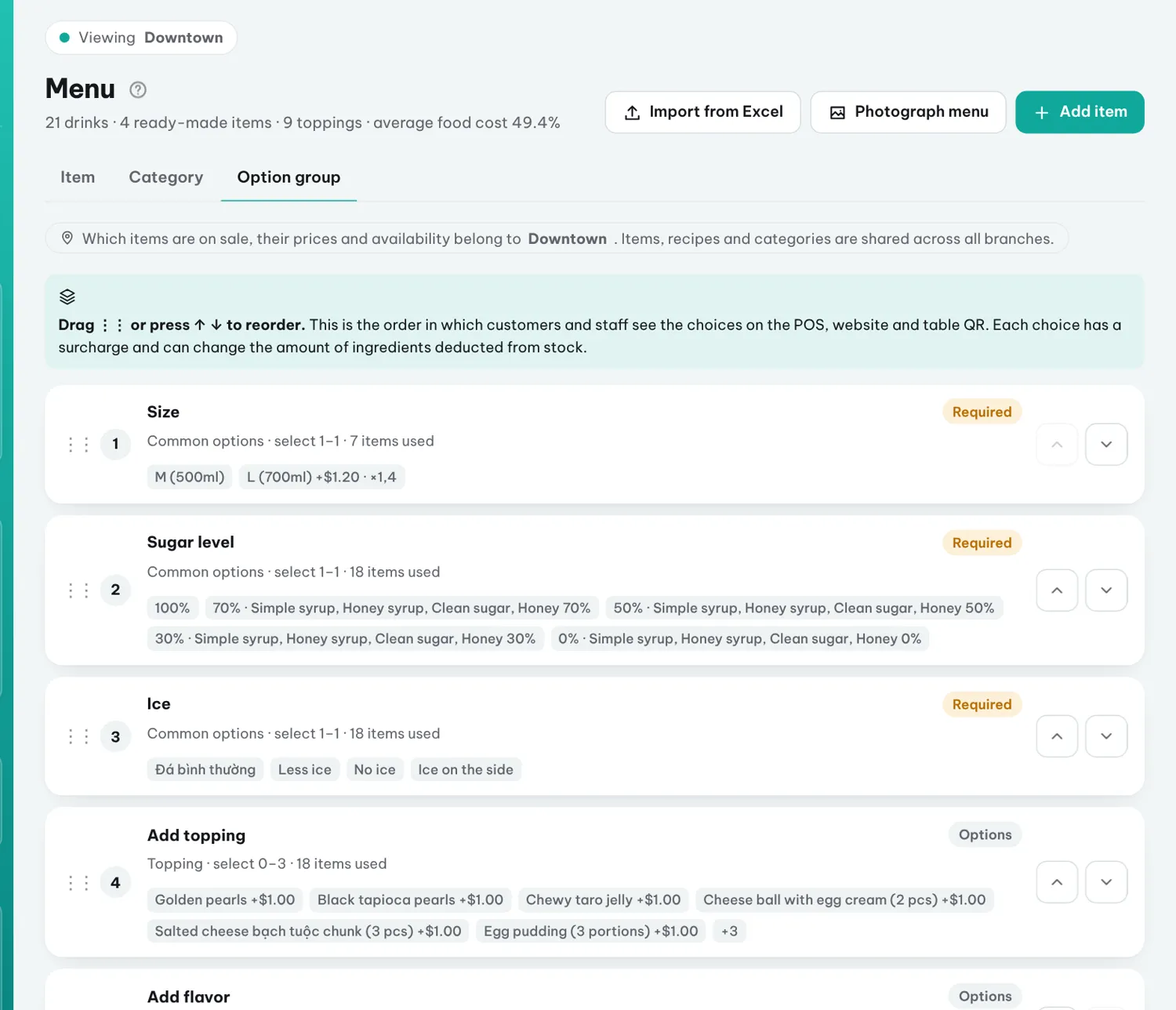
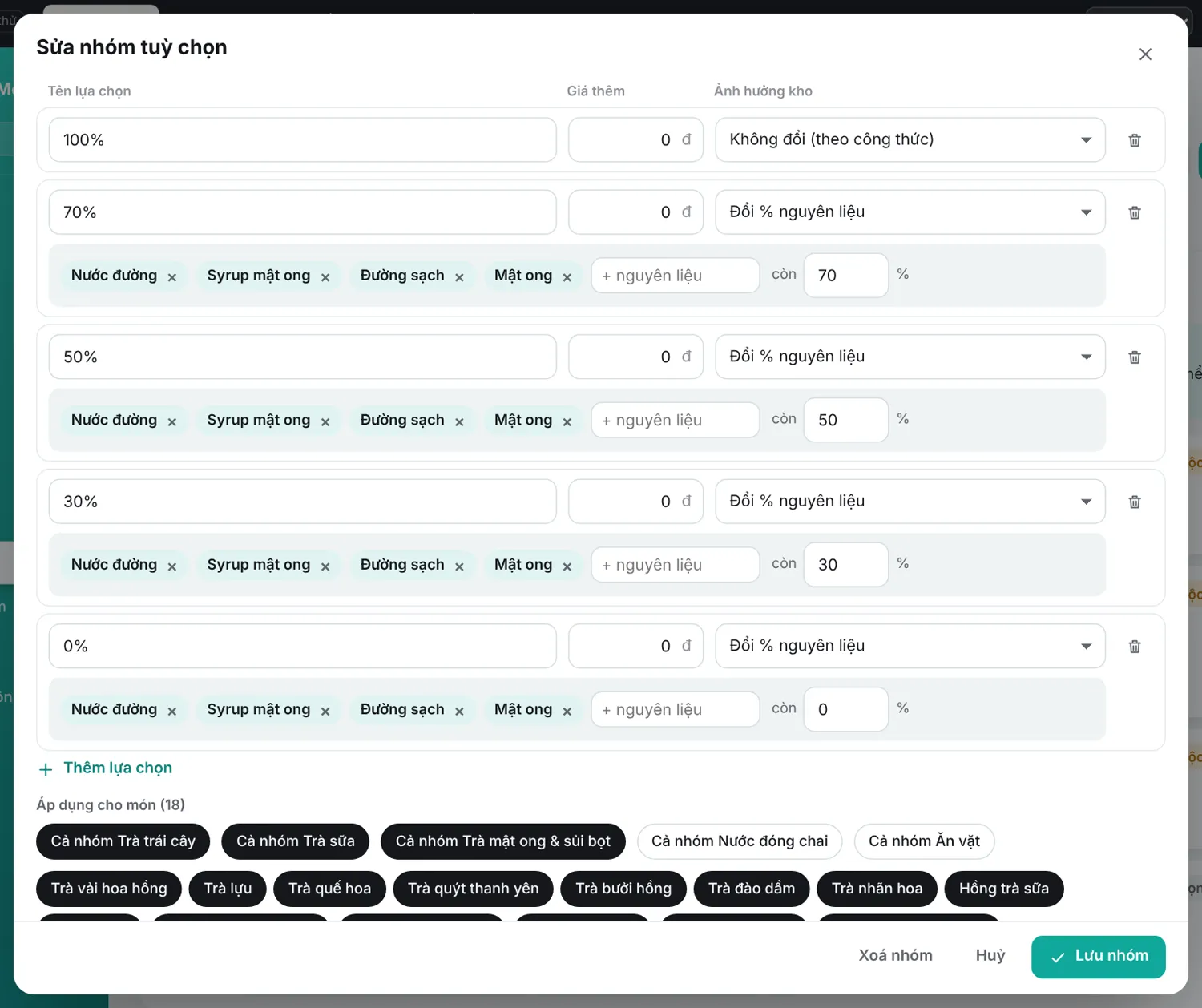
Create a group
- Add a group and give it a name (for example Size).
- Choose whether it is Required, and the minimum / maximum number of items that can be selected (Size is 1–1, Toppings up to 3).
- Add the choices: each choice is a card with a name, an extra price in dollars (L +$0.50) and its stock impact (L ×1.4 of the recipe quantity; Change ingredient %: pick an ingredient and "how much % is left" right below it, in the same card).
- Set a default choice so staff don't have to select it again for every drink (for example Regular ice).
- Attach the group to the items that use it (from the group, or from each item). The Whole group … button attaches it to every item in the category, except topping items: toppings sold on their own have no option group, so the kitchen ticket won't print "0% sugar" for a topping.
Drag ⋮⋮ or click ↑ ↓ to reorder. This order is the order in which customers and staff choose options on the POS, the website and table QR ordering.
Toppings
A topping is an item in the topping category, with its own price and recipe (so stock is deducted correctly). The "Add toppings" group lists the topping items.
Still stuck? Message us on WhatsApp. WhatsApp