 BTA F&B
Thêm và chỉnh sửa món
Pentru: Proprietar
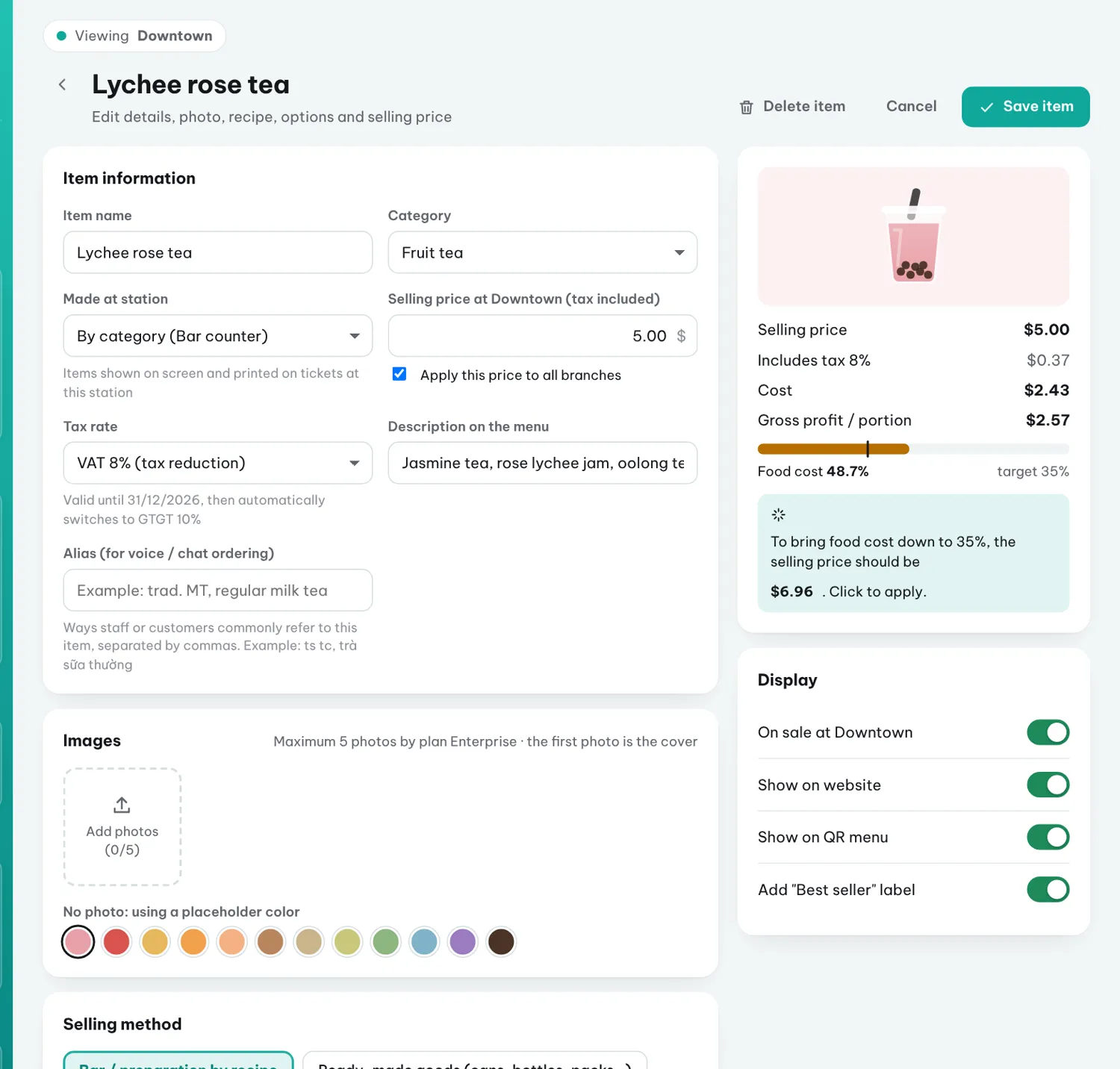
Go to Menu, click Add item (or click an existing item to edit it). The top of the page summarizes the number of made-to-order items, ready-made goods, toppings and average food cost.
Item information
- Item name, Category, Prepared at station (when your venue has several stations).
- Selling price. For venues with multiple branches: tick Apply this price to all branches, or set a separate price for the branch you are viewing.
- Tax rate, Points earned per item (when points are earned per item).
- Menu description: shown on QR and the website.
- Alternative names (voice / chat ordering): the names staff and customers commonly use for the item, separated by commas, for example
ic tea, iced milk tea. - Images: add photos of the item (the number of photos per item depends on your plan). If there is no photo, a colored placeholder is used.
Remove the background from item photos
Item photos with the background removed (transparent background) stand out on the website, especially on the new website templates.
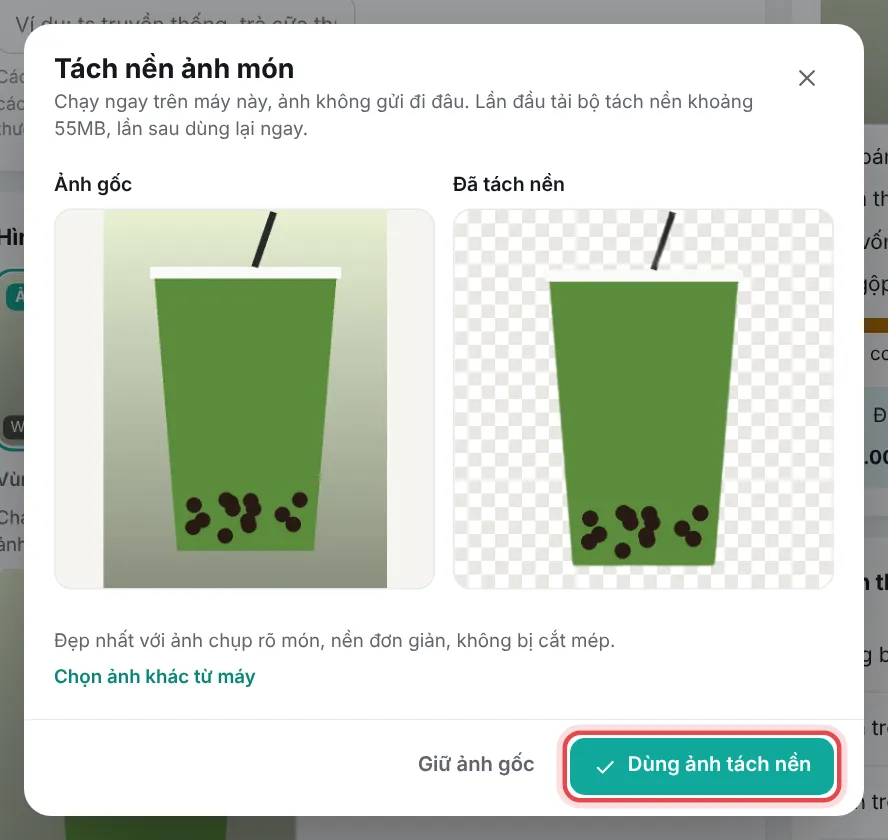
- Open the item, and in the Images section click the sparkle icon on the photo.
- The first time, your device downloads the background-removal tool (about 55MB); after that it is reused instantly. Background removal runs right on your device, the photo is not sent anywhere, and it does not use up any credits.
- View the Original image and Background removed side by side. Click Use background-removed image to replace it, or Keep original image. To try a different photo, click Choose another image from device.
- Click Save on the item.
How the item is sold
- Drinks / dishes made from a recipe: enter the Recipe for 1 serving (ingredients, semi-finished products, quantities). Cost price is calculated automatically, see Recipes and cost price.
- Ready-made goods (cans, bottles, packs, etc.): choose the Selling unit, Purchase pack size and Supplier. Stock changes through purchasing or stocktaking.
Options when ordering: attach option groups (Size, Sugar level, Ice, Topping) to the item. Manage groups in the Option groups tab.
Visibility
- Currently on sale: turn off to stop selling.
- Show on website, Show on QR menu: choose the channels where this item is sold.
- Add the "Best seller" label.
Click Save item.
Wait — I made an error: I output Vietnamese front matter and left the body in English. Correct Romanian version below.
--- title: Adăugarea și editarea produselor group: thuc-don-kho order: 1 roles: chu-quan feat: menu desc: Nume, preț, categorie, fotografie, rețetă, opțiuni, taxe, puncte, denumiri alternative; activați sau dezactivați vânzarea pe POS, QR și site-ul web. keys: background removal, remove background, transparent image, add item, edit item, selling price, item photo, sold out, stop selling, ready-made goods, alternative names --- Accesați Meniu, apoi faceți clic pe Adaugă produs (sau faceți clic pe un produs existent pentru a-l edita). În partea de sus a paginii este afișat un rezumat cu numărul de produse preparate la comandă, produse gata preparate, toppinguri și costul mediu al ingredientelor.
Informații despre produs
- Numele produsului, Categorie, Preparat la stația (când locația dvs. are mai multe stații).
- Preț de vânzare. Pentru locațiile cu mai multe sucursale: bifați Aplică acest preț în toate sucursalele sau stabiliți un preț separat pentru sucursala pe care o vizualizați.
- Cota de taxă, Puncte câștigate per produs (când punctele se acumulează per produs).
- Descrierea din meniu: afișată în QR și pe site-ul web.
- Denumiri alternative (comenzi vocale / prin chat): denumirile folosite de obicei de personal și clienți pentru produs, separate prin virgulă, de exemplu
ic tea, iced milk tea. - Imagini: adăugați fotografii ale produsului (numărul de fotografii per produs depinde de abonamentul dvs.). Dacă nu există fotografie, se folosește un substituent colorat.
Eliminarea fundalului din fotografiile produselor
Fotografiile produselor fără fundal (fundal transparent) ies în evidență pe site-ul web, în special pe noile șabloane de site.
- Deschideți produsul și, în secțiunea Imagini, faceți clic pe pictograma cu scânteie de pe fotografie.
- La prima utilizare, dispozitivul dvs. descarcă instrumentul de eliminare a fundalului (aproximativ 55 MB); ulterior este reutilizat instantaneu. Eliminarea fundalului se face direct pe dispozitivul dvs., fotografia nu este trimisă nicăieri și nu consumă credite.
- Vizualizați alăturat Imaginea originală și Fundal eliminat. Faceți clic pe Folosește imaginea fără fundal pentru a o înlocui sau pe Păstrează imaginea originală. Pentru a încerca o altă fotografie, faceți clic pe Alege altă imagine de pe dispozitiv.
- Faceți clic pe Salvează la produs.
Cum este vândut produsul
- Băuturi / preparate făcute după rețetă: introduceți Rețeta pentru 1 porție (ingrediente, semipreparate, cantități). Costul de producție este calculat automat, consultați Rețete și cost de producție.
- Produse gata preparate (doze, sticle, pachete etc.): alegeți Unitatea de vânzare, Mărimea pachetului de achiziție și Furnizorul. Stocul se modifică prin achiziții sau inventariere.
Opțiuni la comandă: atașați produsului grupuri de opțiuni (Mărime, Nivel de zahăr, Gheață, Topping). Gestionați grupurile în fila Grupuri de opțiuni.
Vizibilitate
- În prezent la vânzare: dezactivați pentru a opri vânzarea.
- Afișează pe site-ul web, Afișează în meniul QR: alegeți canalele în care este vândut acest produs.
- Adaugă eticheta „Cel mai vândut”.
Faceți clic pe Salvează produsul.
Încă ai nevoie de ajutor? Scrie-ne pe WhatsApp. WhatsApp