 BTA F&B
Purchasing and supplier balances
For: Owner
Go to Purchasing & balances. At the top of the page you will see Purchased this month and Owed to suppliers.
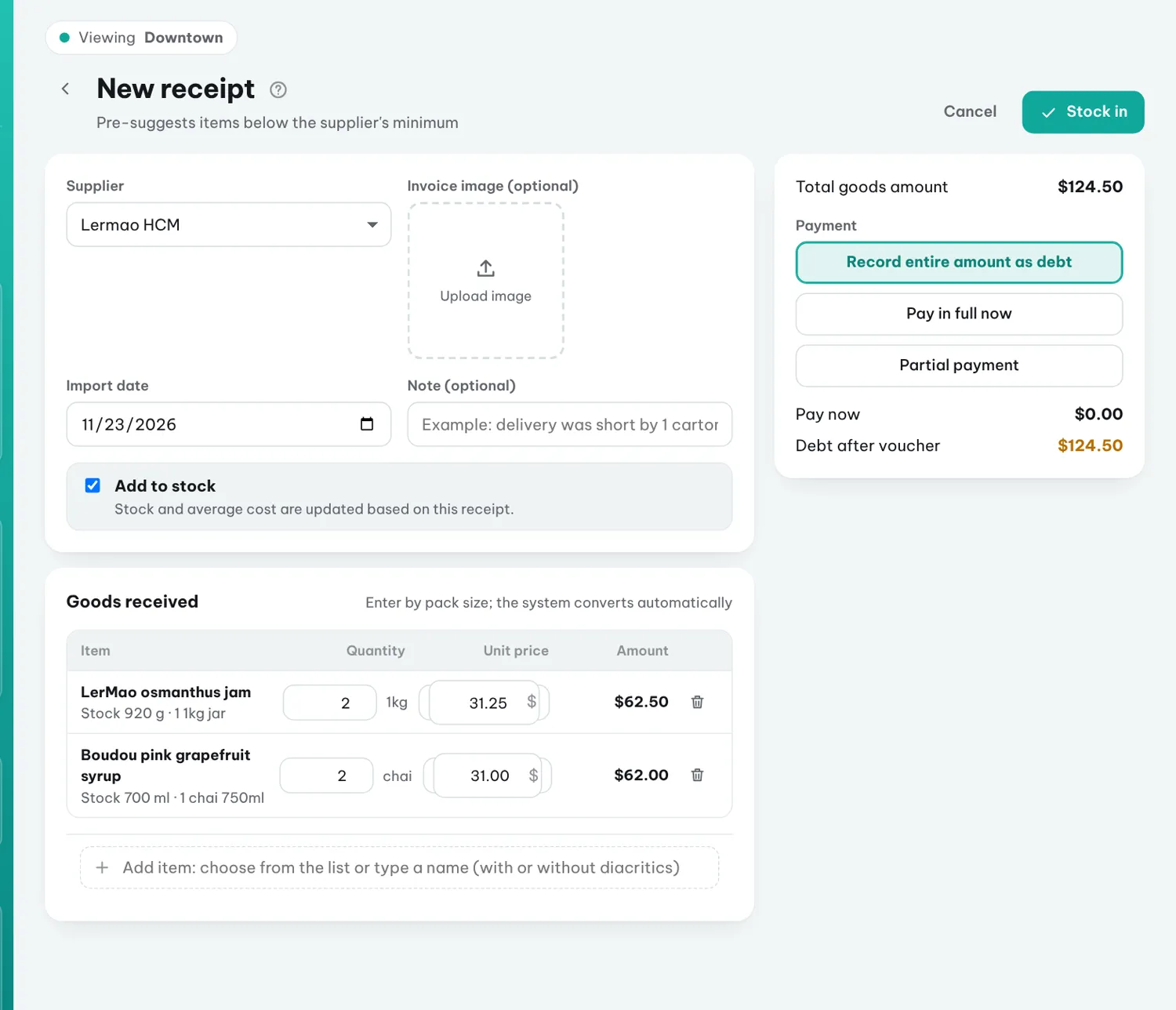
Create a purchase receipt
- Click Create receipt.
- Choose the Supplier and the Purchase date. Add each item: Quantity (in the purchase unit; the system converts it automatically) and Unit price.
- In the payment section, choose Pay now or pay part of the amount (Amount paid, Paid from which cash fund; the payment is recorded in the cash book together with the receipt code). The remainder becomes a supplier balance.
- Optionally add an Invoice photo and a Note, then save.
Create a receipt from an invoice
No need to type every line: take a photo of the invoice and the system reads the item names, quantities and unit prices and pre-fills the receipt.
- On the Purchasing & balances page, click Create receipt from invoice (next to the Create receipt button).
- Choose one of the two options:
- Invoice photo: up to 3 photos (take several photos for a long invoice). Shoot straight on, in good light. This also works for handwritten delivery notes.
- Electronic invoice file (
.xmlor.pdf) that the supplier sends by email.
- Click Read and create receipt: a pre-filled New purchase receipt opens. The system automatically selects the Supplier (by tax ID / name) and the Purchase date, and writes the invoice number in the note.
- Review the Ingredient matching table (below), edit quantities / unit prices if needed, then click Add to stock.
Ingredient matching
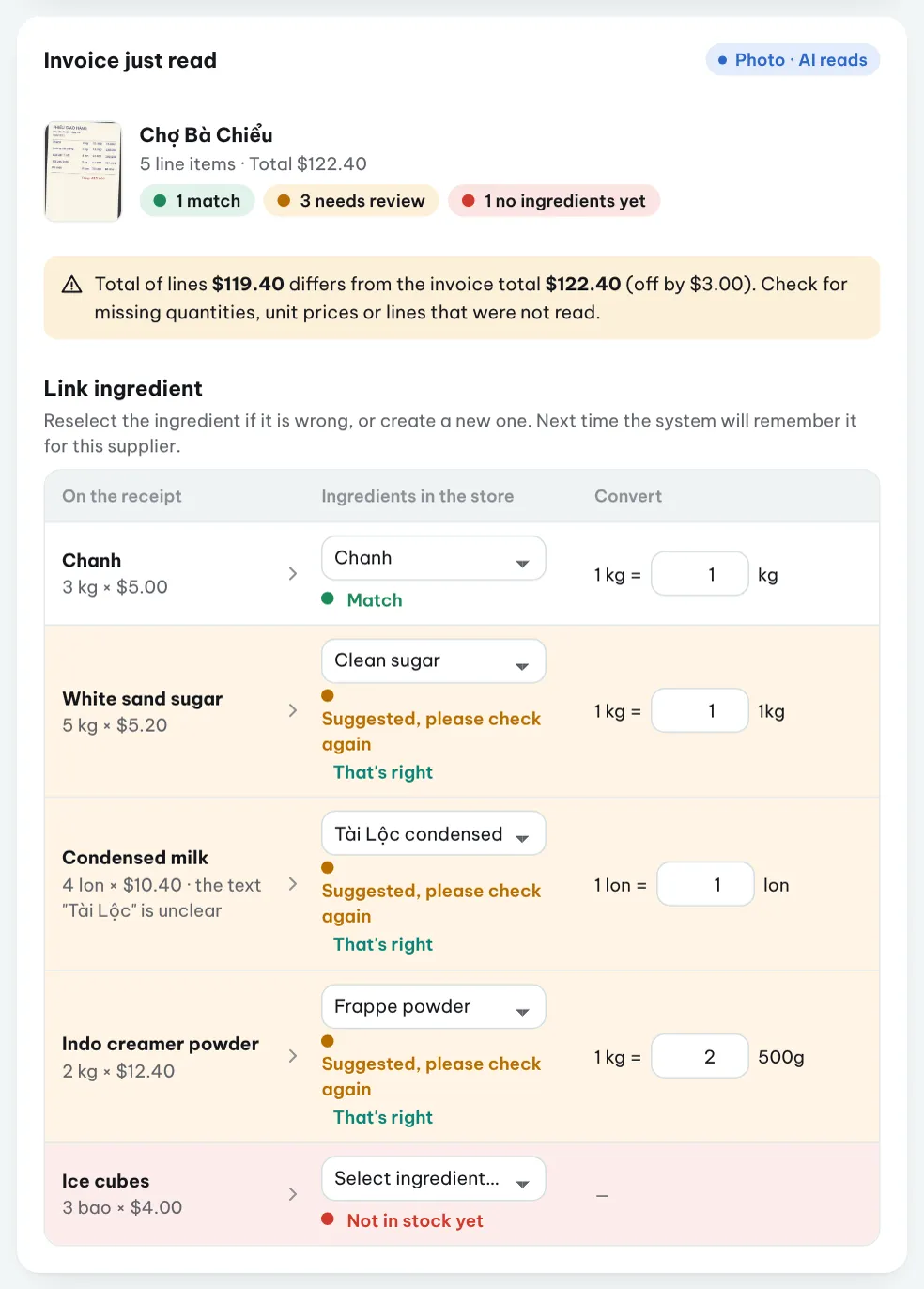
Each line on the invoice is matched to an ingredient in your store:
| Status | Meaning | What to do |
|---|---|---|
| Matched / Remembered from last time | The system is certain | Nothing to do |
| Suggested, please check | The name is similar | Pick the ingredient again, or click That's right |
| Not in stock list | Nothing found | Choose an ingredient, + Create new ingredient… (name, unit and price pre-filled), or Skip this line (delivery fee, packaging, etc.) |
| Conversion needed | The invoice unit differs from the purchase unit | Fill in the Conversion column, e.g. 1 Case = 12 bottles |
After you save the receipt, the system remembers the matching and conversions for each supplier, so the next invoice from the same supplier is matched correctly on its own.
The system also warns you when:
- The sum of the lines differs from the invoice total (a line was missed or misread).
- This invoice has already been entered (same invoice number); the earlier receipt code is shown, so stock isn't added twice.
- The price is more than 20% higher than the previous purchase.
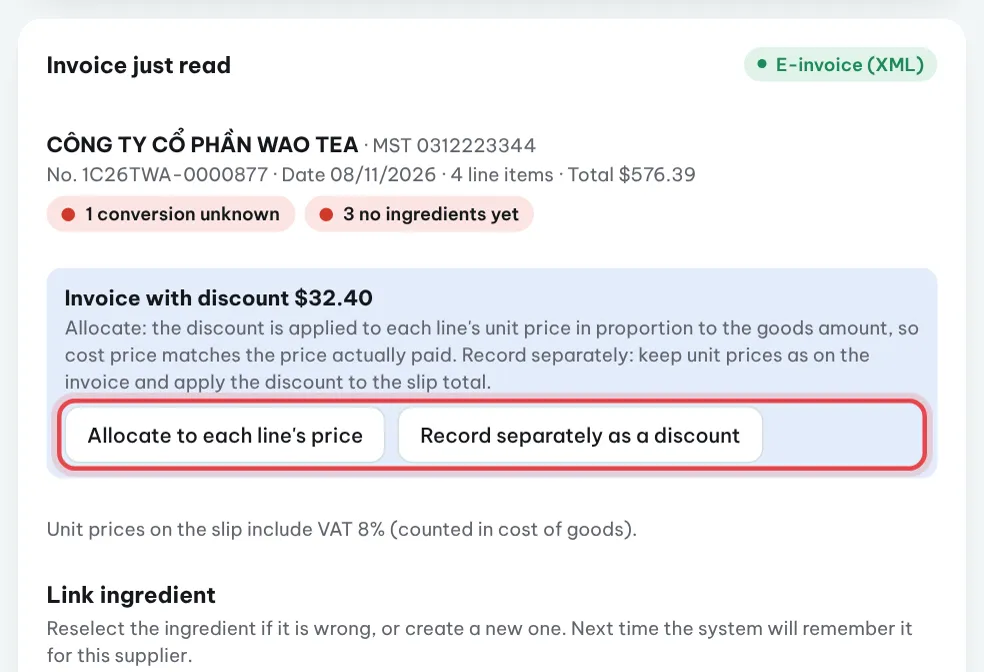
Tax (VAT) is added to the unit price (and so included in the cost). If the invoice has a discount, choose how to apply it before saving:
- Spread across line prices: reduces the unit prices in proportion to the goods amount, so the cost matches what you actually paid.
- Record separately as a discount: keeps unit prices as on the invoice and applies the discount to the receipt total.
One receipt does three things at once: adds to stock, updates the average cost (the cost of dishes using that ingredient changes automatically), and adds to the supplier's balance.
Suppliers and balances
The Suppliers & balances tab: each supplier shows a contact person, payment terms, last purchase date and balance (Owed / Settled). Click a supplier to see their receipts, and click Pay balance to record a payment.
Still stuck? Message us on WhatsApp. WhatsApp