 BTA F&B
Set up your venue fast with a photo of your menu
For: Owner
This method works well when your venue already has a printed menu: you take a photo, AI reads the item names, prices, sizes and toppings, then creates your store with the menu already in place.
- Open global.btafnb.com/new-shop.
- Click Take or choose menu photos, select one or more menu photos (one photo per menu page, shot straight on and well lit), then click Continue.
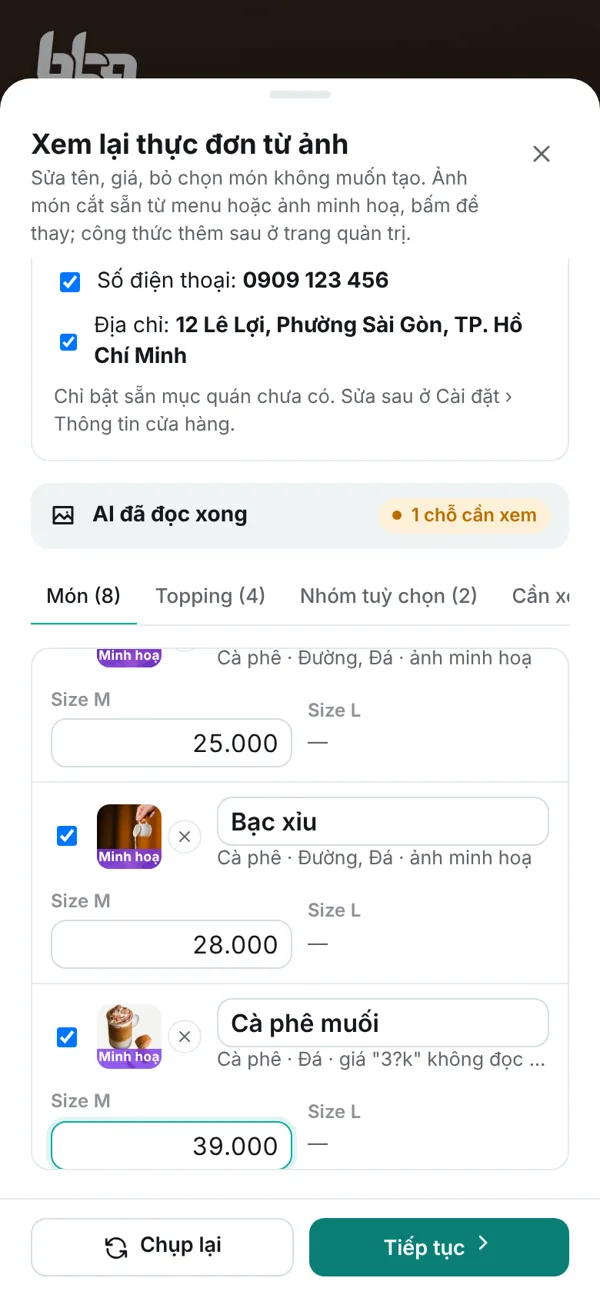
- Wait for the AI to finish reading. The Review menu from photos screen shows the tabs Items, Toppings, Option groups and Needs review: fix any names or prices that are wrong and untick items you don't sell. Items with a picture on the menu are cropped automatically, other items get an illustration if one matches; the logo, phone number and address printed on the menu are also read and added to your venue automatically the first time you open the admin page. Click Continue.
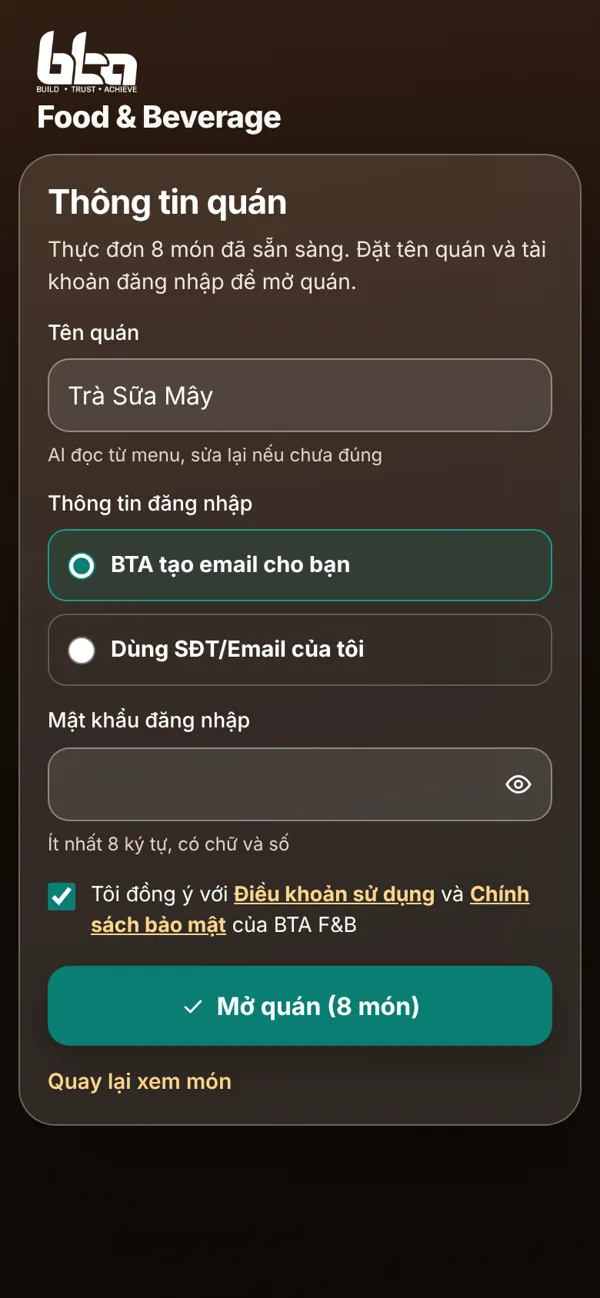
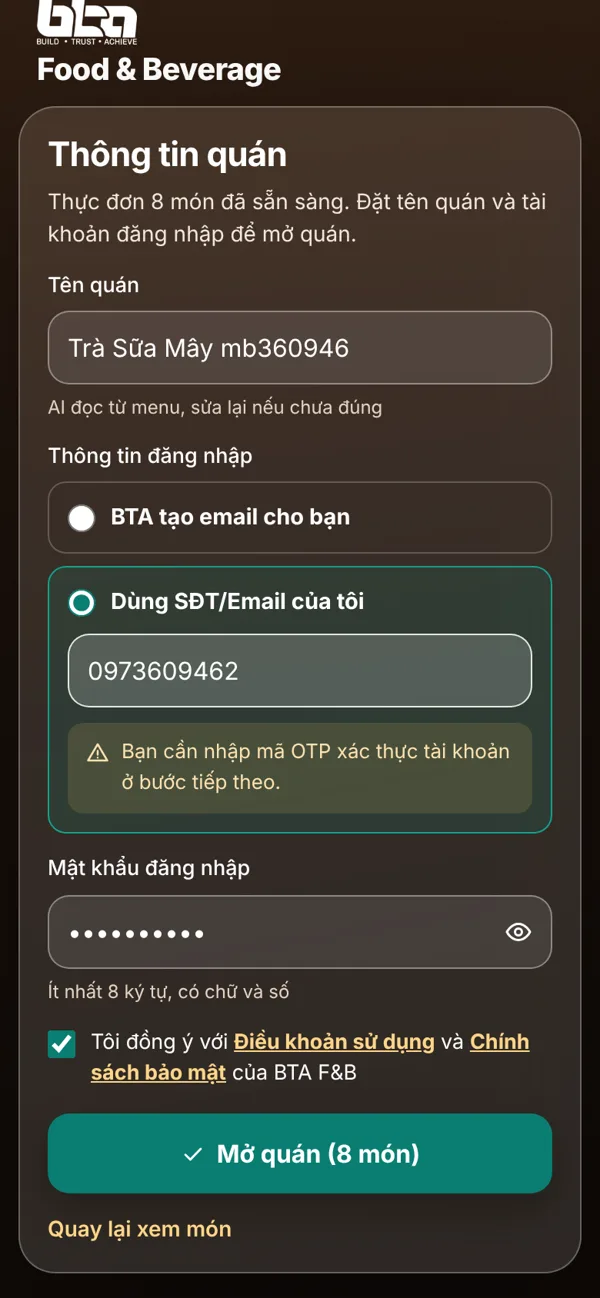
- On the Venue information screen, check the Venue name (read by AI from the menu), then choose your Login details:
- BTA creates an email for you (default): no verification needed, and the final screen shows a login email generated from your venue's website address.
- Use my phone number/email: enter your phone number or email; in the next step, enter the OTP code sent via WhatsApp or SMS (phone number) or by email.
- Set a Login password, keep the box ticked to agree to the terms, and click Open venue (… items).
- The final screen shows your login account. Click Copy, make a note of it along with your password, then choose Go to admin page or Start selling now.
Still stuck? Message us on WhatsApp. WhatsApp