 BTA F&B
Table Reservations
For: Owner, Cashier
Go to Reservations (management page) or tap the Reservations button on the POS.
Create a reservation when a guest calls
Click New reservation: enter the name, phone number, party size, arrival time, occasion (birthday, business…), notes, and assign a table. You can also add pre-ordered dishes if the guest wants them.
View by Month / Week / Day
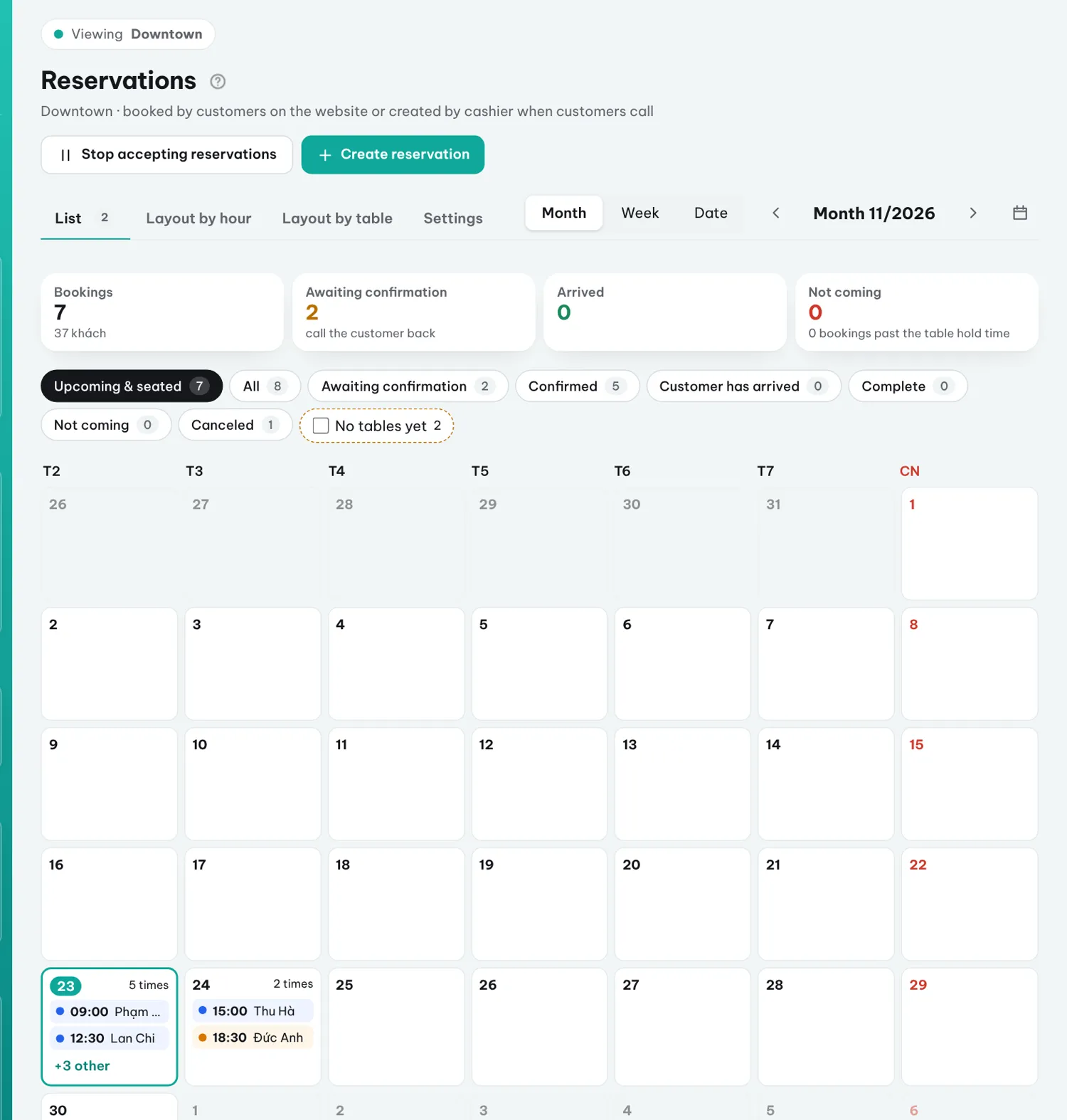
The top row has the tabs List, Timeline, Table view, Settings; on the right are Month / Week / Day and the date picker (arrows, calendar). The default is Month; whichever view you choose is shared by all three tabs. Click a day's name (calendar cell, column header) to see all reservations for that day.
List
- Month: a monthly calendar; each day shows the number of reservations and the first few; closed days show Closed.
- Week: 7 days, each listing its reservations.
- Day: a list of cards / rows, with filters Pending confirmation, Confirmed, Guest arrived, Completed, No-show, Cancelled, No table assigned.
- Pending confirmation reservations: call the guest back, then click Confirm & assign table.
- When the guest arrives: click Guest arrived. The assigned table switches to Occupied on the floor plan (POS, waiter app, management page) even before the guest orders. If the guest hasn't shown up after the table hold time: mark No-show.
Timeline
See bookings spread out by hour and by day: the vertical axis is the hour, each horizontal column is a day.
- Week / Day: each reservation is a block as tall as the seating duration; overlapping reservations sit side by side. Colors: orange = pending confirmation, blue = confirmed, green = guest arrived, gray = completed / no-show. Time slots that don't accept bookings are shaded gray, and closed days are crossed out.
- Month: a heat map where each cell is 1 hour of 1 day, the number = number of reservations, and the darker the color the more guests — you can spot peak hours at a glance.
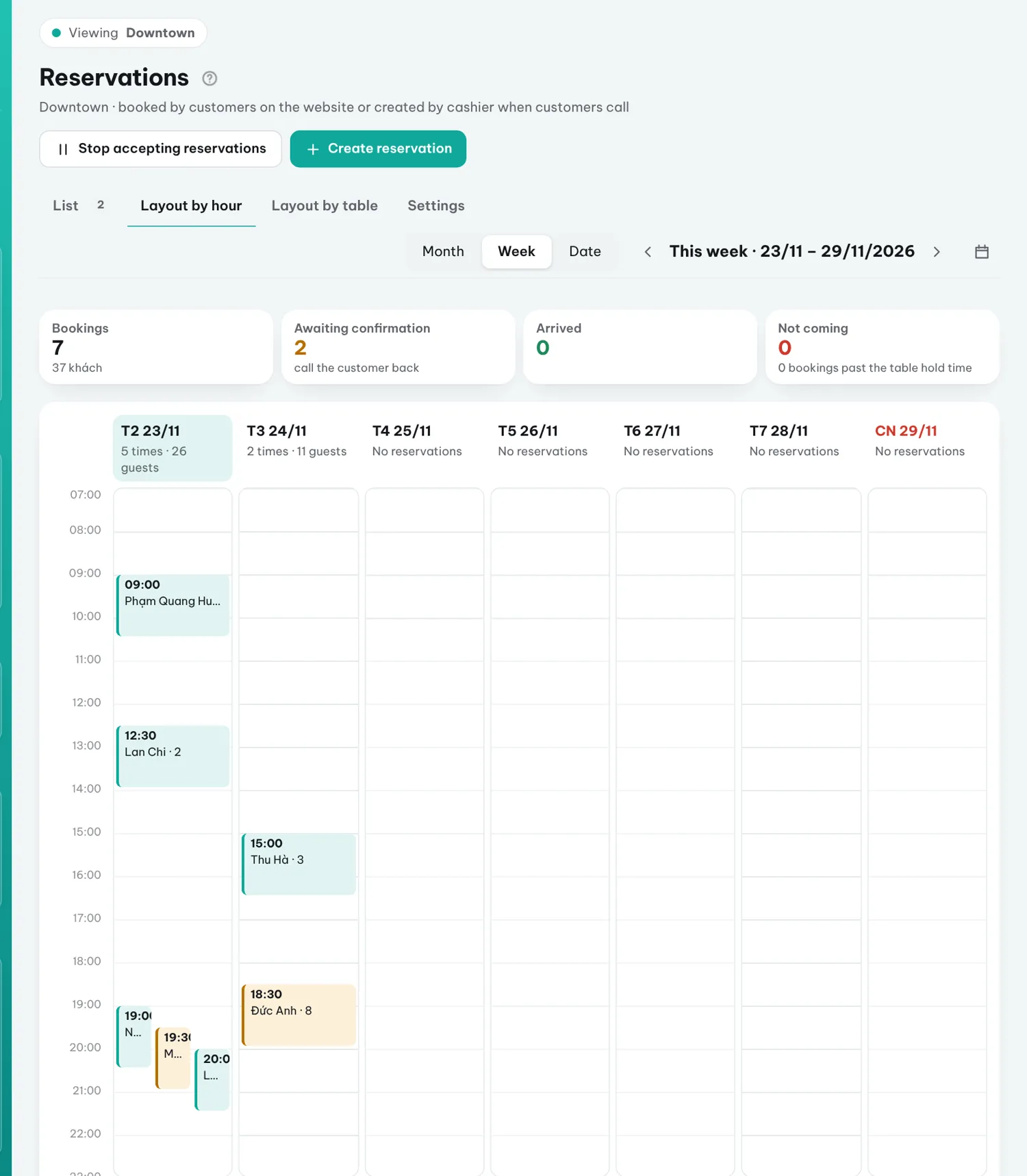
Table view
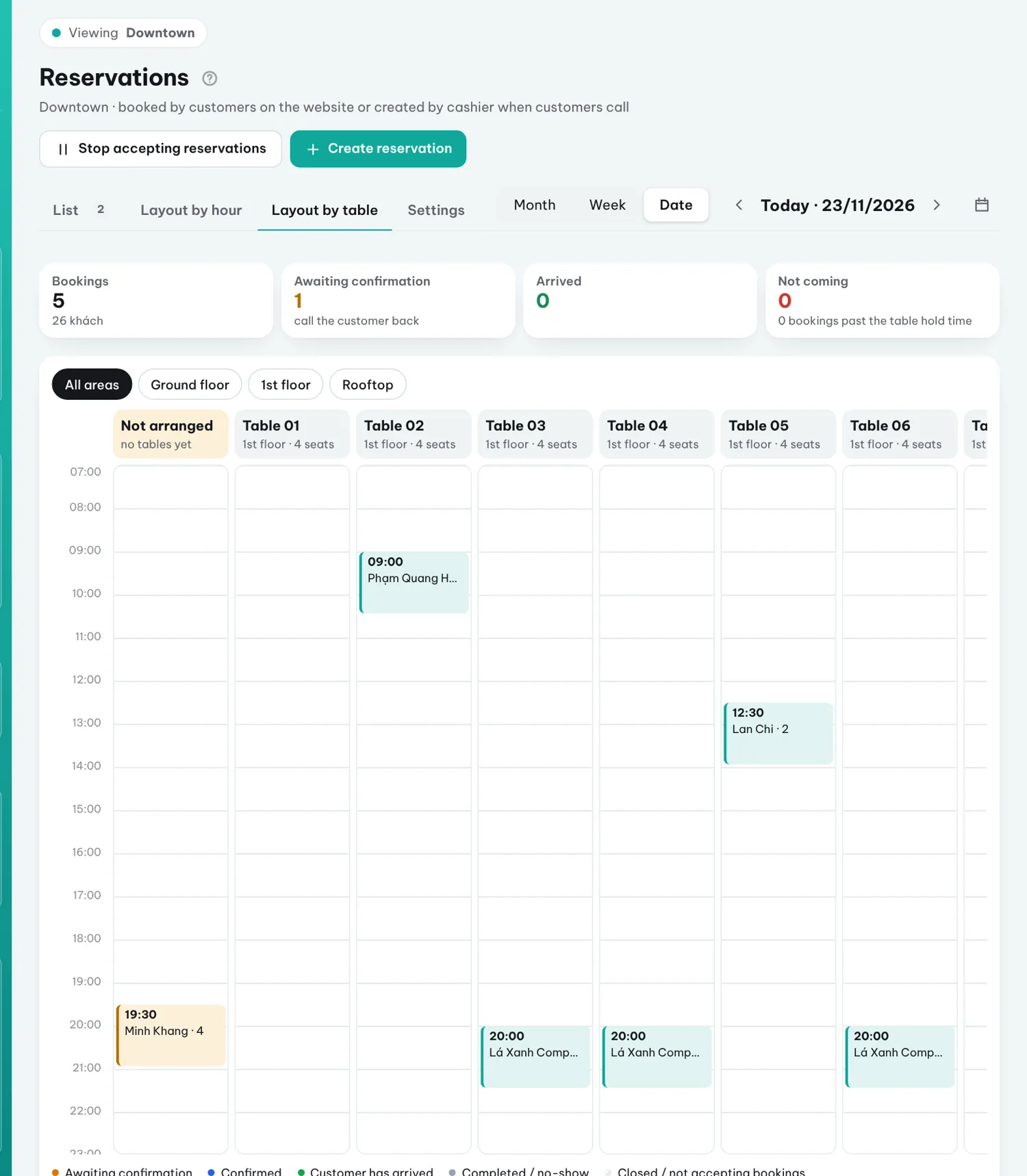
See who has booked each table: the horizontal columns are Unassigned | Table 01 | Table 02 …, with the area and number of seats under each table name; areas that hold spots by capacity (no fixed tables) get their own column. Filter by area at the top of the grid.
- Day: the vertical axis is the hour. Reservations in the Unassigned column have no table yet — click one to confirm and assign a table.
- Week / Month: the vertical axis is the day, and each cell lists that table's reservations for the day.
On phones, the charts scroll horizontally (the hour / day column stays fixed on the left).
Settings
The Settings tab (per branch):
- Accept reservations on website, Let guests choose a table when booking, Auto-confirm when tables are available.
- Seating duration (minutes), Time slot interval, Minimum advance notice (minutes), Maximum advance booking (days), Maximum guests per online reservation (one party), Hold table after booking time (minutes), Note shown to guests when booking.
For the guest's side of online booking, see Website reservations.
Booking schedule: closed days, blocked time slots, pause bookings
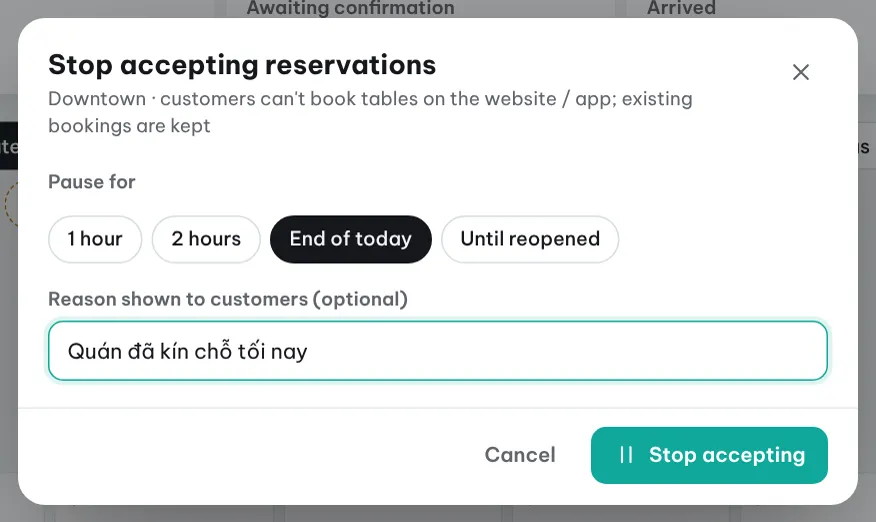
Pause bookings (the button next to New reservation at the top of the Reservations page): choose 1 hour / 2 hours / Rest of today / Until reopened, and enter a reason shown to guests (for example "We are fully booked tonight"). An orange banner appears at the top: Bookings paused until …; click Resume bookings (top button) to accept bookings again. When the chosen time is up, bookings reopen automatically.
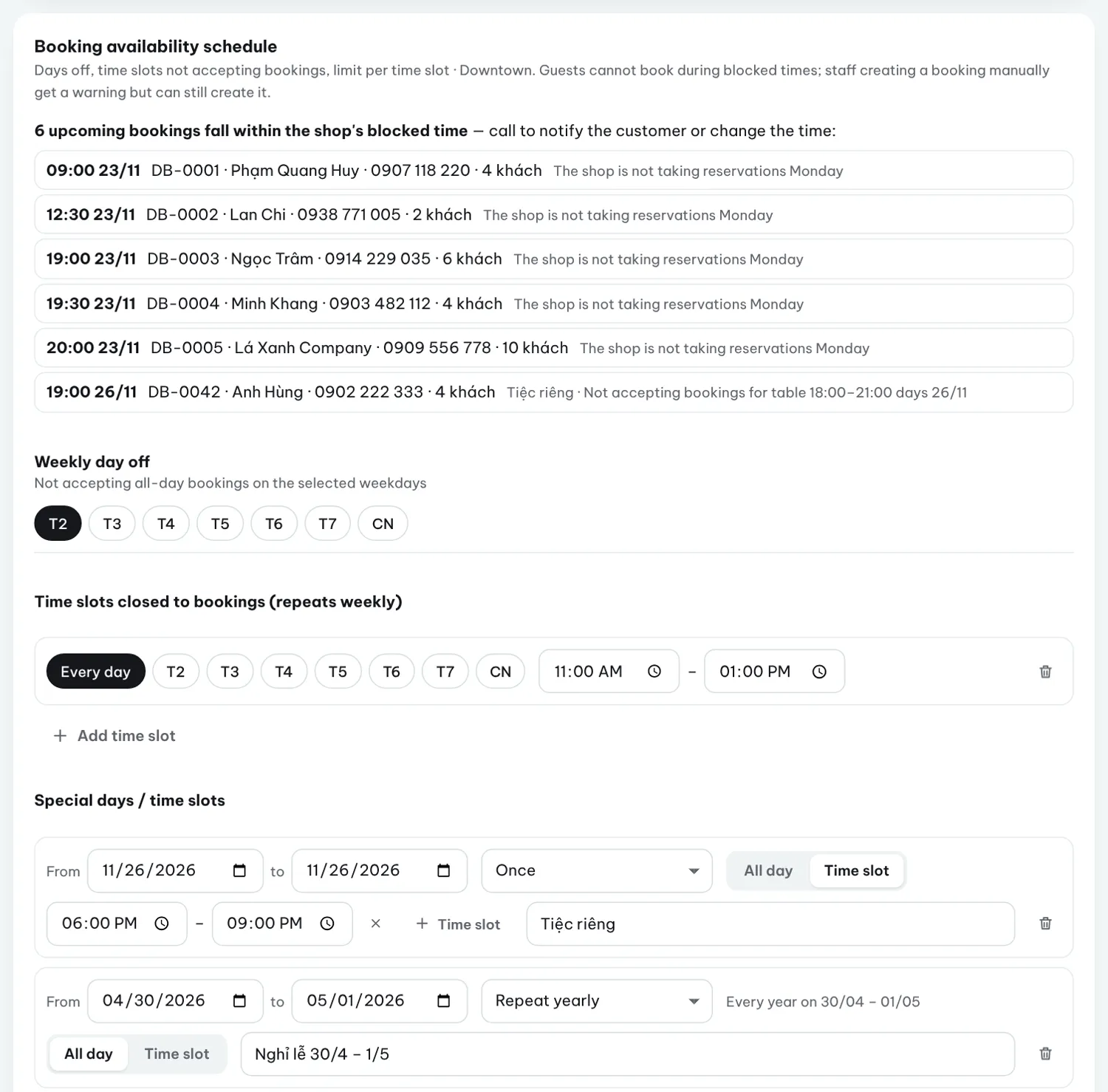
In the Settings tab, the Booking schedule card (set separately for each branch):
- Weekly closed days: tick the weekdays when the restaurant takes no bookings all day.
- Blocked time slots (repeat weekly): for example 11:00–13:00 every day, or only Sat and Sun.
- Special days / time slots: one day or several consecutive days (holiday closure, renovation), All day or only certain Time slots (private party 18:00–21:00), with a reason shown to guests. The Repeat field: Once, Repeat monthly (by day of the month, for example the 1st of every month closed for cleaning) or Repeat yearly (by day / month, for example Dec 24 – Dec 26). One-time dates that have passed are hidden automatically; repeating dates are kept. Repeats follow the Gregorian calendar (enter lunar-calendar holidays each year).
- Limits per time slot: Maximum reservations per time slot (number of parties) and Maximum total guests per time slot (the guests of all reservations in the slot added up; the slot length equals the Time slot interval). This differs from Maximum guests per online reservation, which limits a single party. Example: at most 12 guests per reservation, at most 30 guests per slot. Once a slot is full, it closes automatically on the website. Set 0 for no limit.
How it is applied:
- Website / guest app / QR: closed days and blocked slots appear grayed out and struck through (closed days say "Closed") and cannot be selected: when a guest clicks them, a message explains that the restaurant does not accept bookings for that date / time, with the reason; the server also rejects the booking if a guest tries to book then. While bookings are paused, the booking page shows that reservations are temporarily unavailable.
- Staff creating manually (guest phones, at the counter): only a warning is shown, and you can still create the reservation. Blocked time slots are struck through, and the dialog footer states the reason along with "you can still create it".
- Existing reservations that fall in a newly blocked period are not cancelled automatically. The Booking schedule card lists them (time, code, name, phone number, reason) so you can call the guests or change the time; click a row to open the details.
- The Month / Week calendars mark closed days.
- The server rechecks every condition before accepting an online reservation: Accept reservations on website is on, Maximum guests per online reservation, Minimum advance notice (minutes), Maximum advance booking (days), the branch's opening hours (arrival time + Seating duration must not go past closing time), the booking schedule, the per-slot limits, and whether the chosen table / area still has enough space. If any check fails, the reason is shown and no reservation is created.
Still stuck? Message us on WhatsApp. WhatsApp