 BTA F&B
Tables, Areas and Number Cards
For: Owner
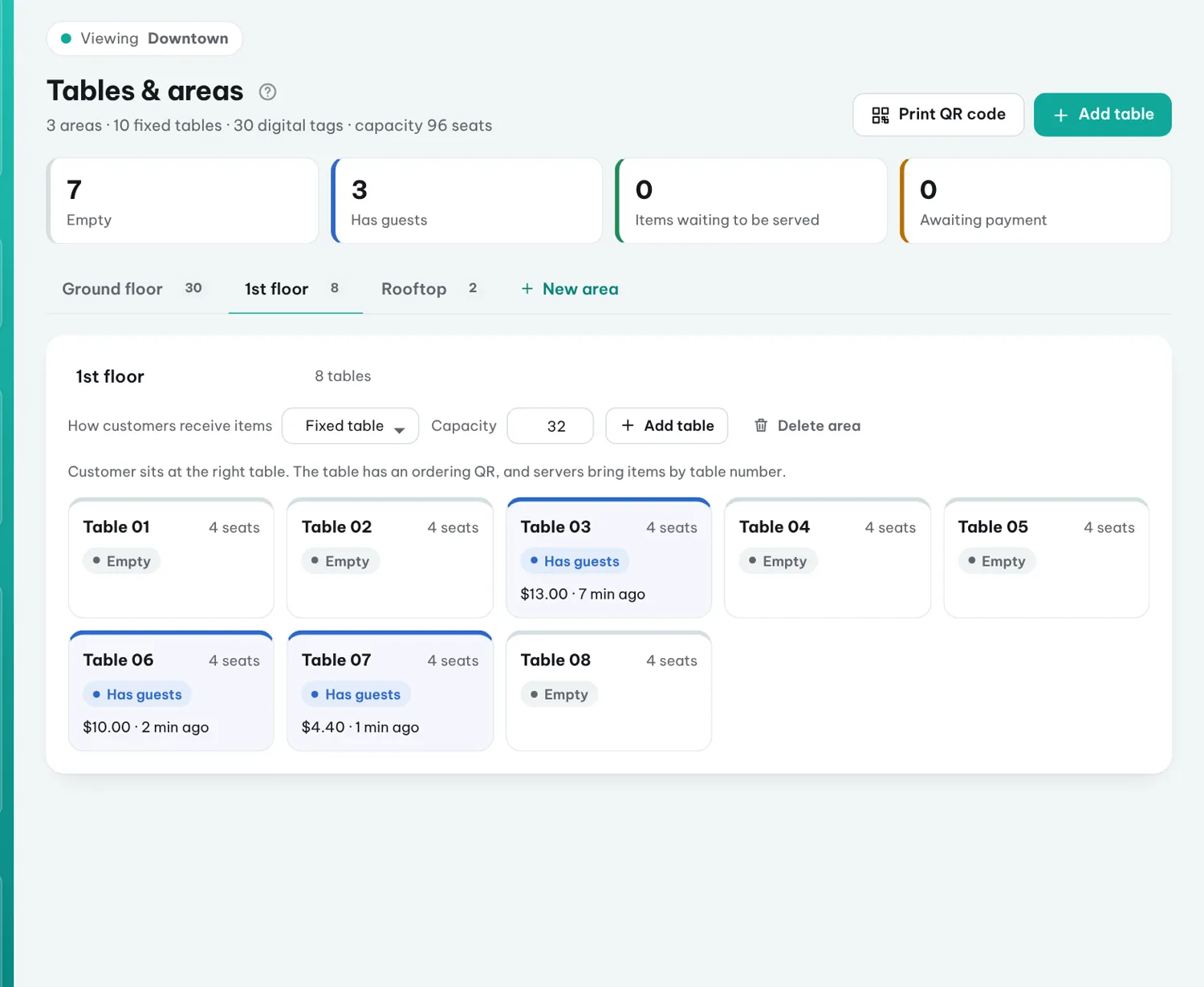
Go to Tables & Areas. The top of the page summarizes how many tables are free, occupied, waiting for items to be served, and waiting for payment.
Add an area
- Click New area. An area is a floor, a patio, or a room.
- Enter the Area name and, optionally, the Capacity to see occupancy by hour.
- Choose how Guests receive their order:
| Mode | Use when |
|---|---|
| Fixed tables | Guests sit at a specific table. Each table has an ordering QR code, and servers bring items to the table number |
| Number cards | Guests order at the counter, take a number card, and sit anywhere. Staff bring items to the card |
| Vibrating pagers | Guests order at the counter and take a pager. When the order is ready, the counter triggers the pager and the guest picks it up |
| Order calling | No table service. The order calling screen shows the order code and guests come to the counter |
- For a fixed-table area: under Create tables for this area, enter Number of tables, Name prefix, Start from number, and Seats per table. Click Add area.
For a card area: click Create cards in bulk and enter the card number range (for example 1 to 30, up to 300 cards at a time).
Print QR codes
Click Print QR codes at the top of the page, or go to Sales channels › Ordering QR, to open the Ordering QR codes dialog:
- If your venue has both tables and number cards, choose the Table QR or Card QR tab.
- Filter by area; if you have several branches, select the branch right in the dialog.
- Click Print / save PDF: your browser opens the print dialog, where you can choose a printer or "Save as PDF". Only the codes currently filtered are printed.
- In a number-card area, the Print card QR codes button opens the Card QR tab for that area.
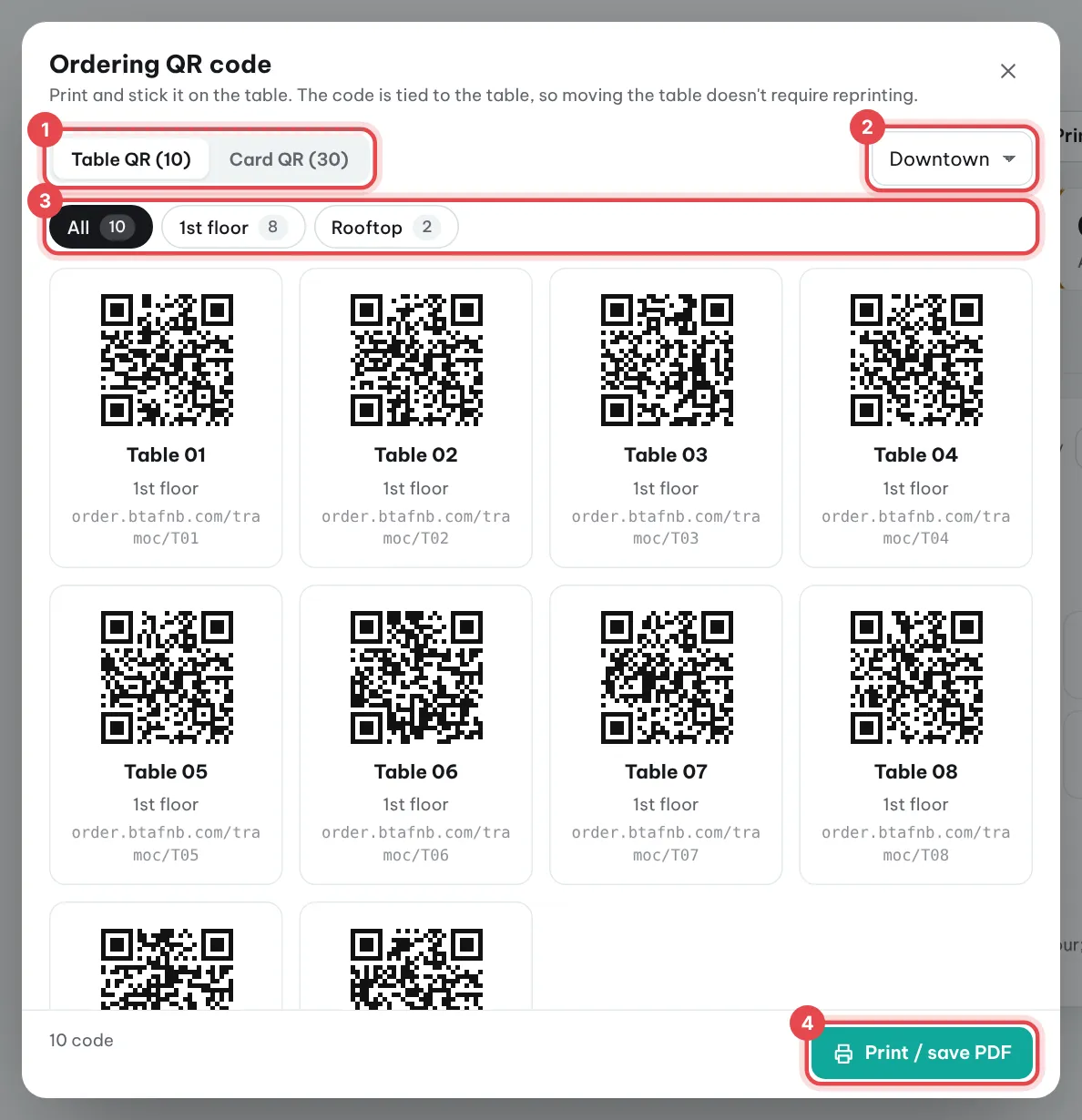
Stick the code on the table or the card. See Table QR ordering.
Add, edit, move and merge tables
- Add table: add individual tables to an existing area. Click a table to edit its name, number of seats, or view its QR code.
- Move / merge tables: when guests change seats or sit together, move the bill to another table or merge it into an occupied table.
- Collect cards: take back a card the guest has returned (collect payment first if there is an outstanding balance).
Still stuck? Message us on WhatsApp. WhatsApp