 BTA F&B
Inventory and ingredients
For: Owner
Go to Inventory. Stock runs on a ledger: every sale, production batch, purchase, and stock count adds a line to the stock card.
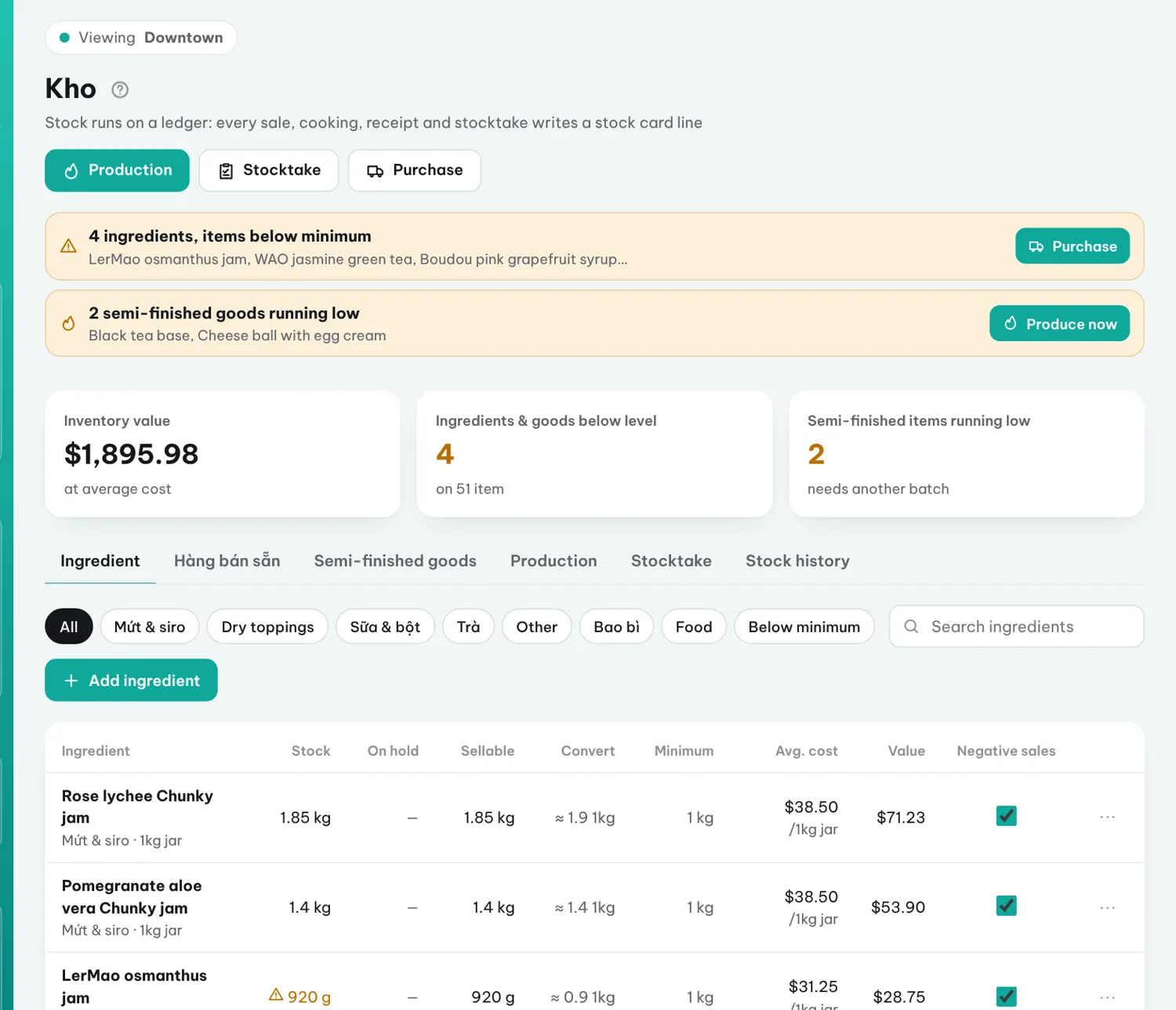
At the top of the page: alerts for ingredients below the minimum level (Restock button), semi-finished items running low (Produce now button), and Stock value based on the average cost.
Tabs
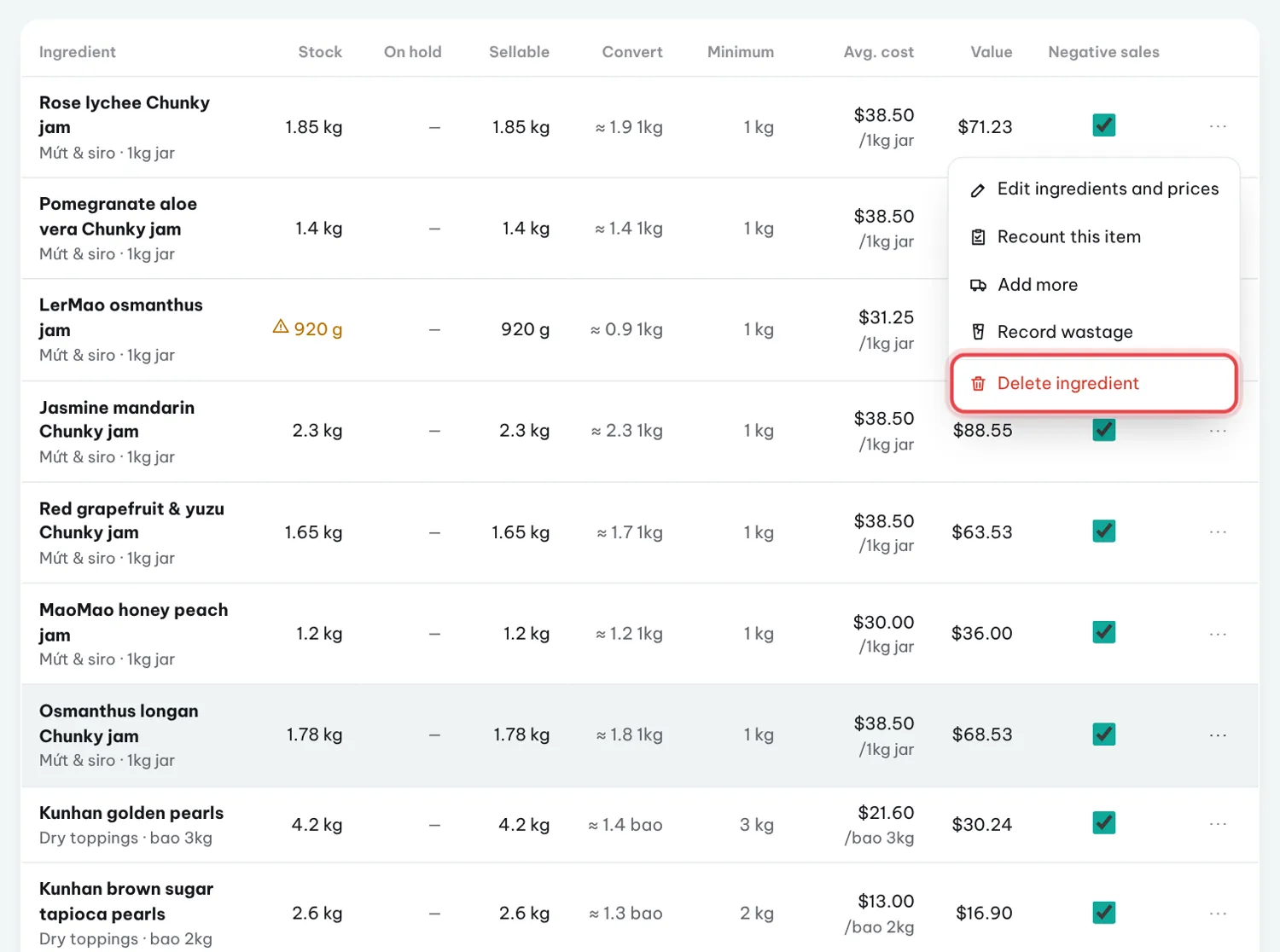
- Ingredients, Ready-made items, Semi-finished items: stock on hand, Reserved, Available, conversion by pack size, minimum level, average cost, value, and the Allow negative checkbox. Filter by group or by Below minimum.
- Production: batch production slips. See Semi-finished items.
- Stock count: see Stock count.
- Stock history: every change over time, filtered by transaction type (sales, purchases, batch production, stock counts, waste…). Click Export Excel to download.
Reserved and Available
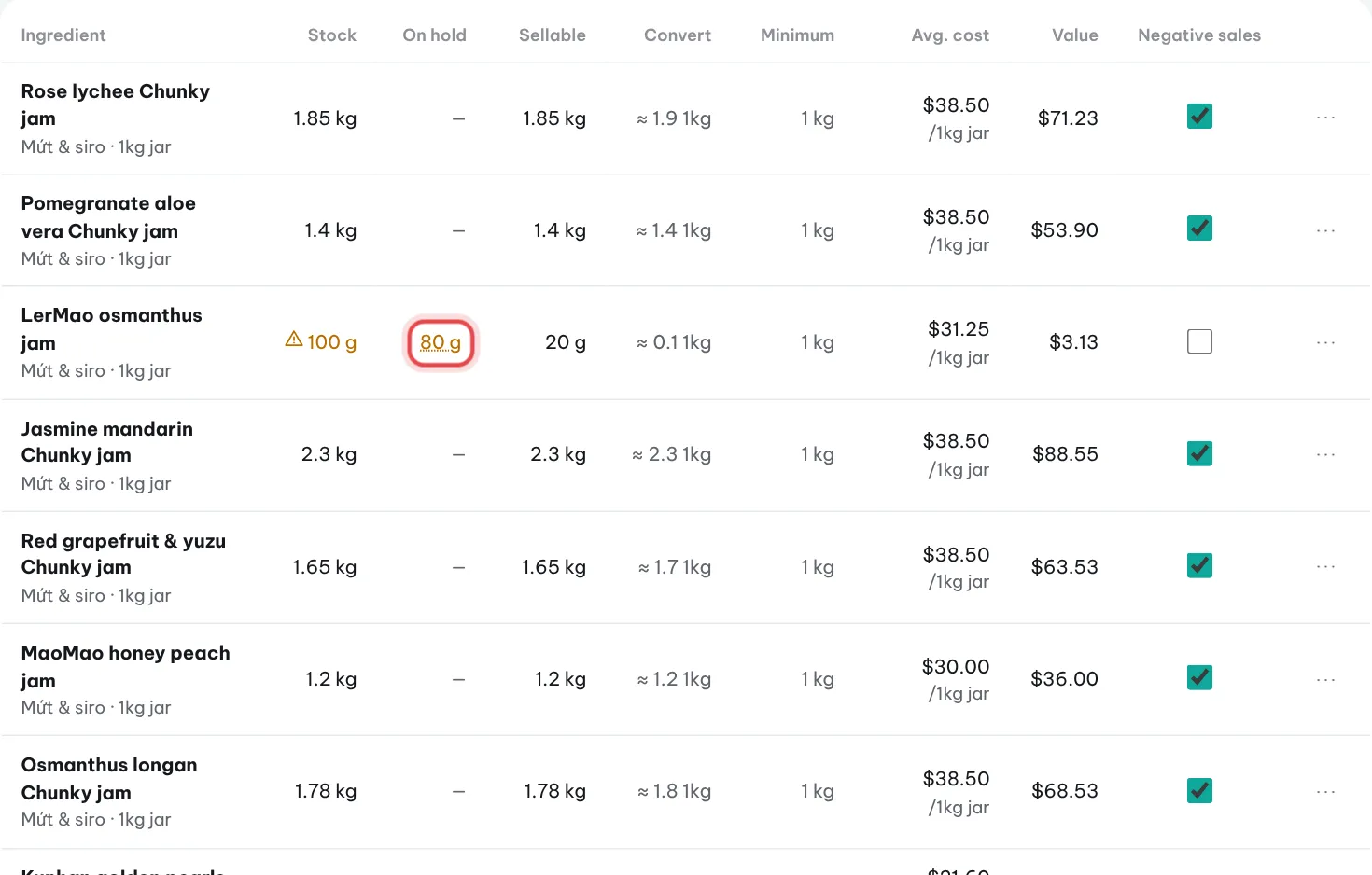
- Reserved has two parts:
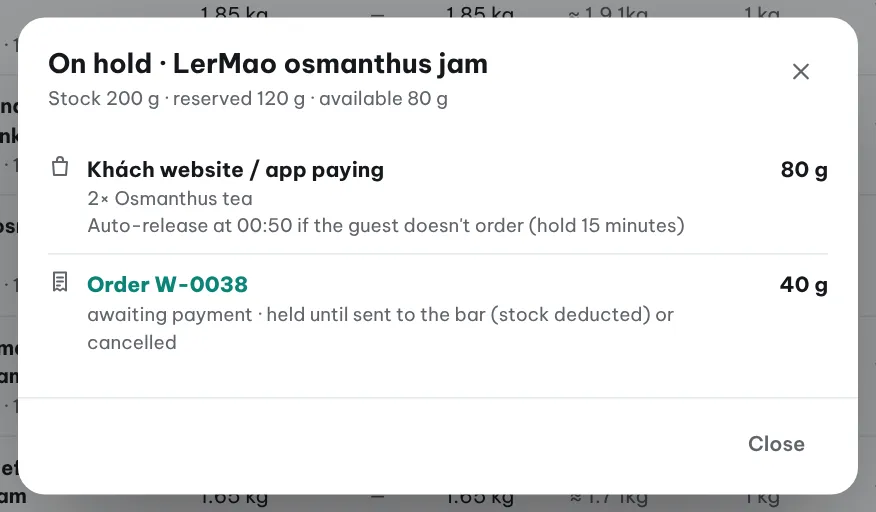
- Customers ordering on the website, via the table QR code, or in the customer app who have reached the payment step. Items in the cart are held for 15 minutes (change this in Settings › Inventory operations › Hold items when online customers reach payment, 5–60 minutes). If the customer does not place the order in that time, or leaves the payment step, the hold is released automatically.
- Orders that have been created but have not yet deducted stock (awaiting payment, awaiting approval from the venue, scheduled orders): these are always held until they are sent to the kitchen/bar (when stock is actually deducted) or cancelled.
- Available = Stock − Reserved. Zero or negative numbers are shown in red.
- Click the number in the Reserved column to see who it is held for: customers currently paying (what is in their cart and when the hold is released) or which orders (click the order number to open it).
Allowing negative stock
Every ingredient, semi-finished item, and ready-made item has an Allow negative checkbox (last column of the table, or in the item details). The default follows Settings › Inventory operations › Allow selling when stock is negative.
- Checked: when stock runs out, the item still sells normally and stock can go negative (reconcile with a stock count later).
- Unchecked: when Available is not enough for a dish:
- The website, table QR code, and customer app show Temporarily out of stock. A customer at the payment step sees a red box, Item just sold out, and must remove items before the order can be placed. The server also re-checks when the order is created.
- The POS and waiter screen show an Out of stock label on the item. When you try to create the order, Not enough available stock appears: a person with the Approve overselling permission (owner, shift manager) clicks Sell anyway; anyone else clicks Manager approval so a manager can enter their PIN. The order records who approved it.
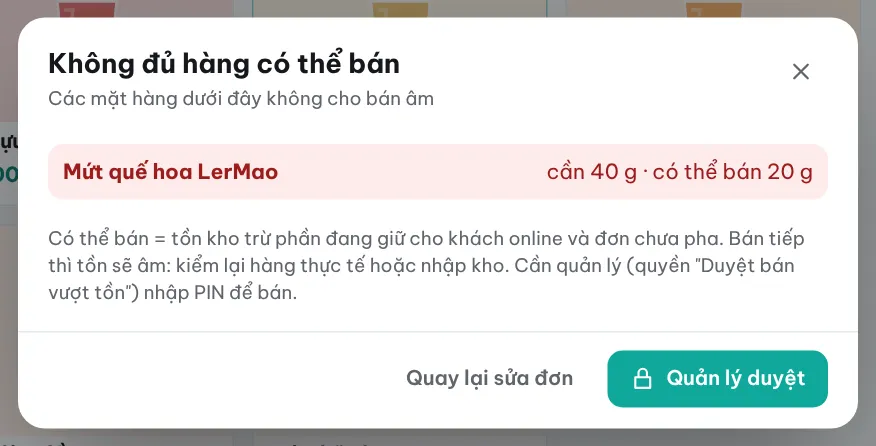
Changing this checkbox requires the Stock entry permission.
Adding an ingredient
Click Add ingredient and fill in: Ingredient name, Group, Recipe unit (g, ml…), Purchase pack size (for example a 1 kg jar or a case of 24 cans; the system converts automatically), Unit price, Supplier, and the minimum level (below this level the system tells you to restock).
Quick actions on each row
Click ⋯ on an ingredient row: Edit ingredient, price, Recount this item, Add stock, Record waste (broken glass icon), Delete ingredient (trash icon, red text, at the bottom of the menu). Click a row to see its details, which also has a Delete button.
Deleting ingredients, ready-made items, and semi-finished items
In the Ingredients, Ready-made items, and Semi-finished items tabs, click ⋯ › Delete …:
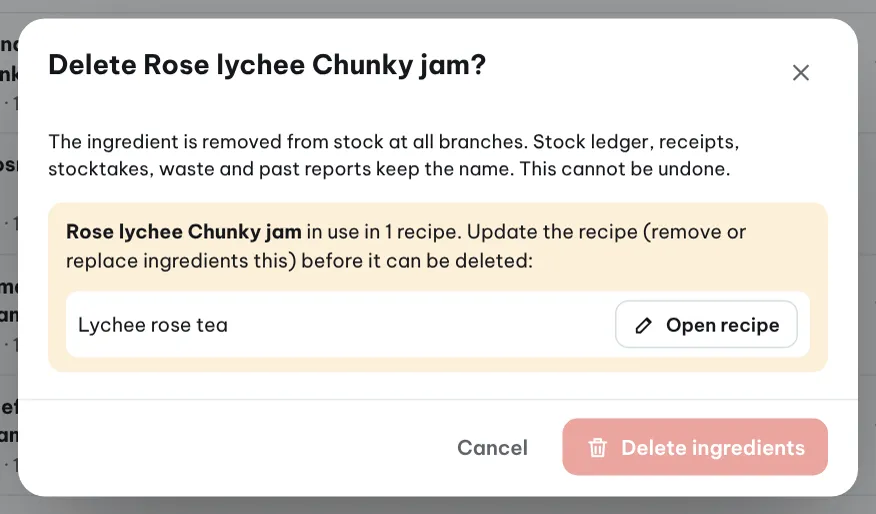
- Used in recipes (dish recipes, semi-finished item recipes, option groups that deduct stock): the system tells you where it is used and does not allow deletion yet. Click Open recipe next to each name to edit it right away (remove or replace this ingredient), then come back and delete.
- Still in stock: it can still be deleted; the system first tells you the quantity on hand (across all branches) and the value that will be removed from the total stock value.
- Old stock ledgers, purchase slips, stock counts, waste records, orders, and reports keep the name. The deletion is recorded in the activity log. It cannot be undone.
- Who can delete: people with the Stock entry permission (ingredients, semi-finished items) or Delete items permission (ready-made items), and the owner. A cashier who only has the stock count permission cannot delete.
Still stuck? Message us on WhatsApp. WhatsApp