 BTA F&B
Receiving orders on your website
For: Owner, Cashier
Customers place an order
- The customer opens your restaurant's website, selects a branch (for restaurants with multiple branches), and taps Order now.
- They choose items, sizes, and toppings, then add them to the cart.
- They choose pickup (with a scheduled time) or delivery (they enter an address, and the delivery fee is calculated by distance).
- They enter their phone number (to earn loyalty points), name, and a note for the restaurant, then choose to pay in advance by PayPal or card, or pay on receipt (if you have enabled it). The Place order button, with the total amount, always stays at the bottom of the screen as the customer scrolls.
- After ordering, the customer can follow the order status on the website until they receive their food.
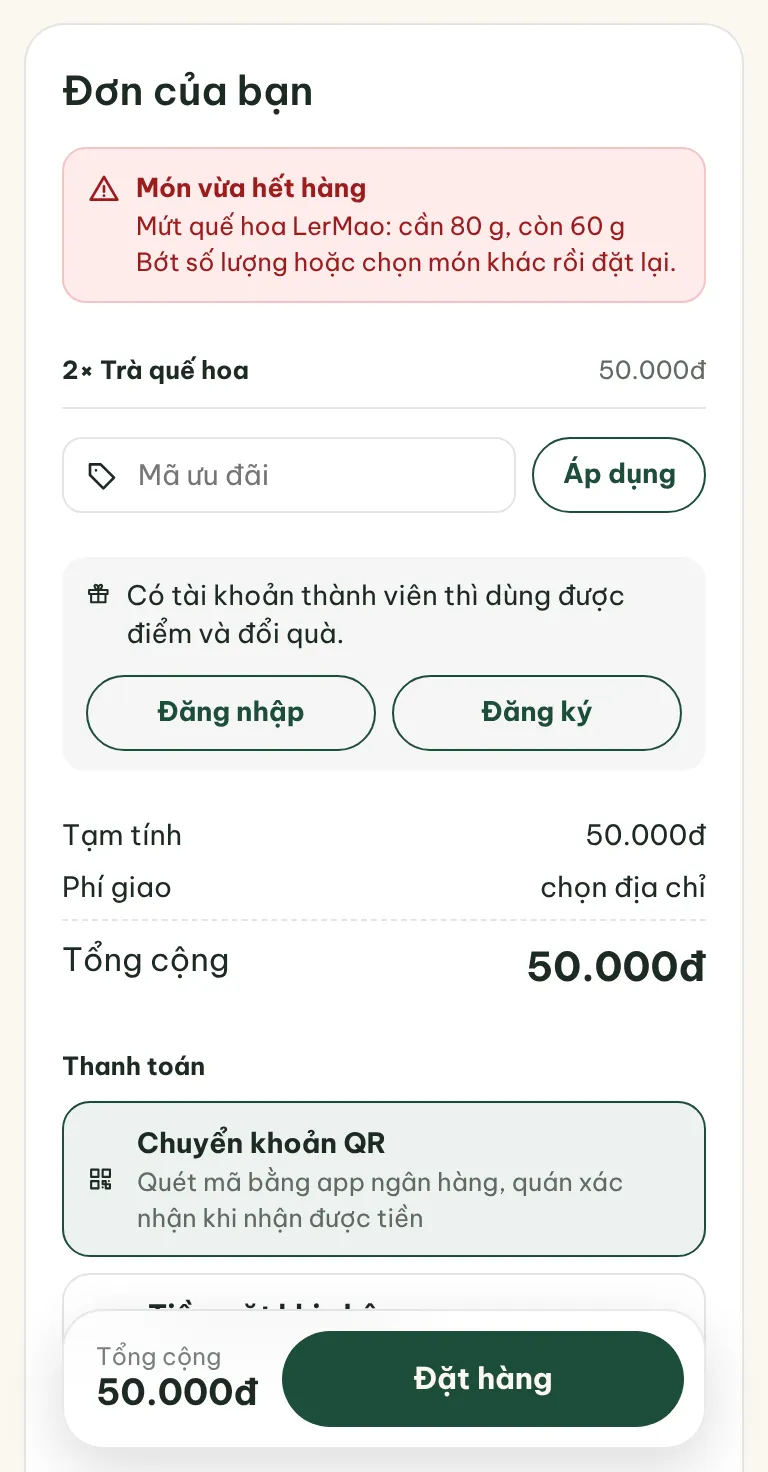
When the customer reaches the order confirmation step, the system holds the stock for the items in the cart for 15 minutes (you can change this). Items that use ingredients set to not allow negative stock and that run out of sellable stock show Temporarily out of stock; a customer who is already at the payment step sees a red box saying An item just ran out of stock. See Inventory › On hold and Available to sell.
The restaurant receives the order
The order arrives in the POS with a pending status, and the cashier approves it before the kitchen starts preparing it. The selected staff members receive a notification about the new order.
Settings
- Website › Online orders: Accepting orders on the website or Paused (customers can still view the menu but cannot place orders; table QR ordering keeps working).
- Pay on receipt or prepayment only: Settings › Payment, under Pay on delivery / on pickup.
- Delivery fee and radius: Settings › Delivery. Turning sales channels on or off: Service models.
- Which items appear on the website: turn on Show on website in each item.
Still stuck? Message us on WhatsApp. WhatsApp