 BTA F&B
Approving table QR orders and website orders
For: Cashier, Owner
Orders placed by customers themselves (scanning the QR code at the table, ordering on the website) do not go straight to the bar or kitchen: the cashier checks them first, then sends them for preparation. This prevents fake and mistaken orders.
When a new order arrives
- The POS device plays an alert sound, and the number of pending orders appears on the Orders button and in the Active orders strip.
- People selected to receive notifications (see Shop notifications) see it at the bell icon, and phones with the app receive a push notification.
Approving an order
- Tap Orders on the POS (or tap an order in the Active orders strip).
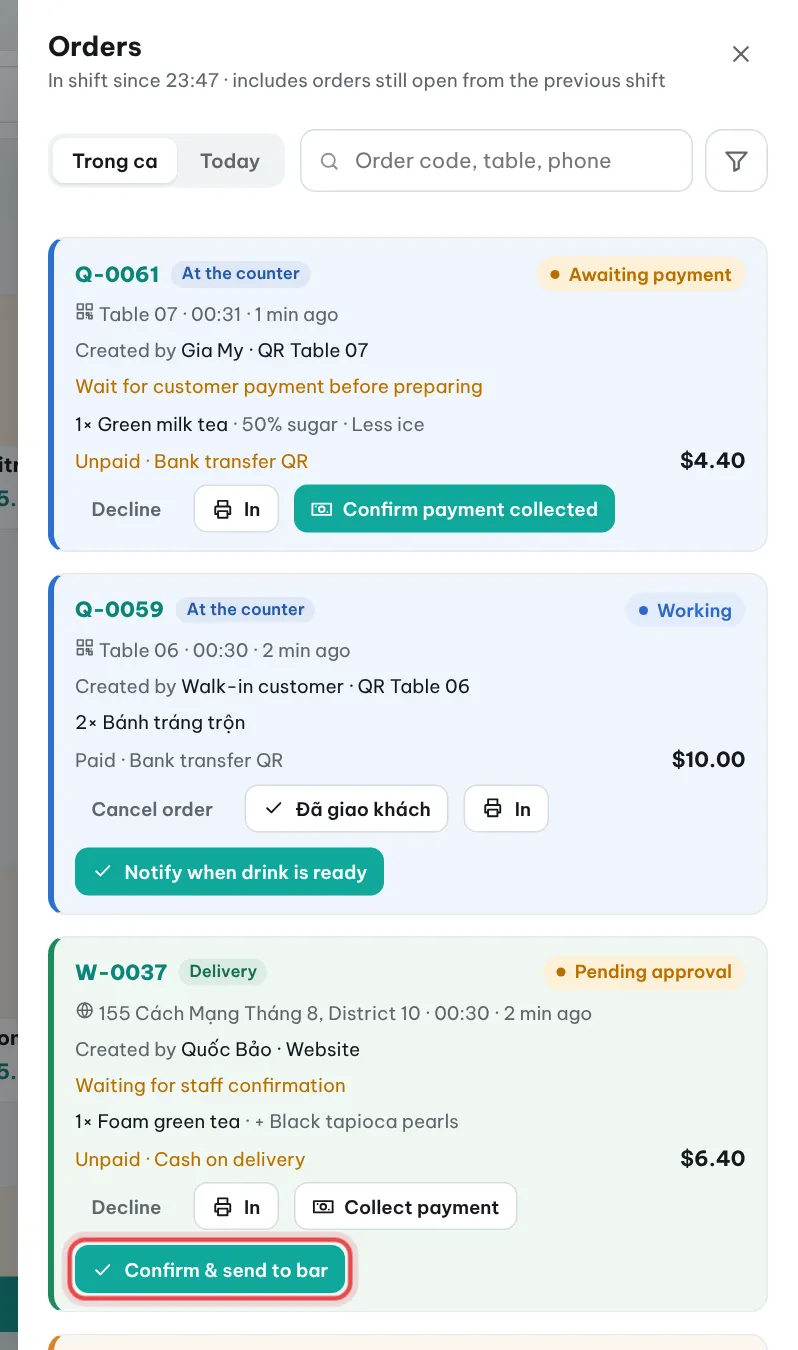
- A Pending approval order shows the customer, the channel (Website, Table QR …), the items and the payment method.
- Choose:
- Confirm & send to prep: the order goes to the bar / kitchen. The kitchen ticket and cup label are printed on the printer of the POS device that approved it.
- Take payment: collect payment before sending to prep (pay-on-pickup orders, customer at the counter).
- Decline: choose a reason and the order moves to Cancelled (if it has already been paid, the refund step opens).
Prepaid QR orders
The customer scans the QR code and pays right when ordering. The order shows Waiting for customer payment before prep. Once the payment arrives (or the cashier taps Confirm payment received after seeing the money arrive, for offline card or PayPal payments), the order goes to prep.
Still stuck? Message us on WhatsApp. WhatsApp