 BTA F&B
Sign up and open your shop
For: Owner
All you need is a phone number (or email) and your shop's address. No bank card required, nothing to install.
Steps
- Open manage.btafnb.com/signup on your phone or computer, or click Open your shop for free on global.btafnb.com. In the BTA FnB app on Android, choose Sign up for free. The iPhone / iPad app is only for signing in to a shop that already has an account: sign up in a browser first, then sign in to the app.
- At the Create account step, choose to sign up with a Phone number or Email, then set a Password (at least 8 characters, with both letters and numbers).
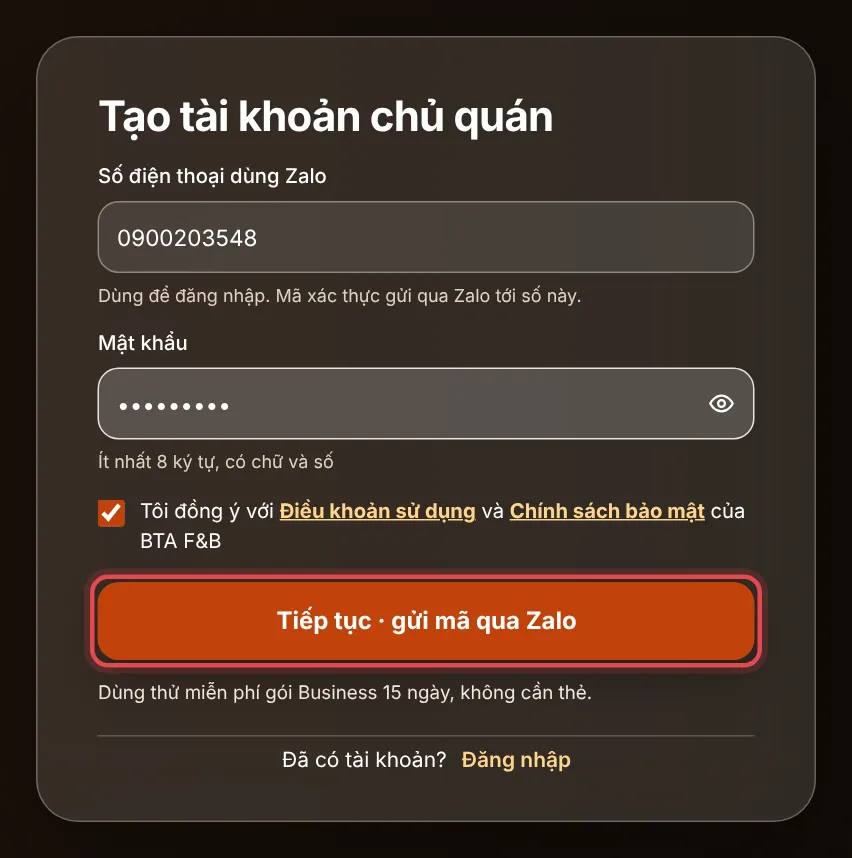
Step 1: create the owner account - Tick the box to accept the Terms of Use and Privacy Policy, then click Continue · send code via SMS (or by email). Enter the verification code you just received and click Continue. For email, the code appears right in the subject line (you can see it from the notification); Gmail usually shows a Copy code button next to the message, iPhone / Mac suggest the code for autofill; or press and hold (double-click) the code in the message to select and copy it.
- At the Shop information step, enter the Shop name, Shop address (street number, street, city, state/region, postal code) and check the Website address. The website address is generated from your shop name, in the form
yourshop.shop.btafnb.com; you can edit it if you like.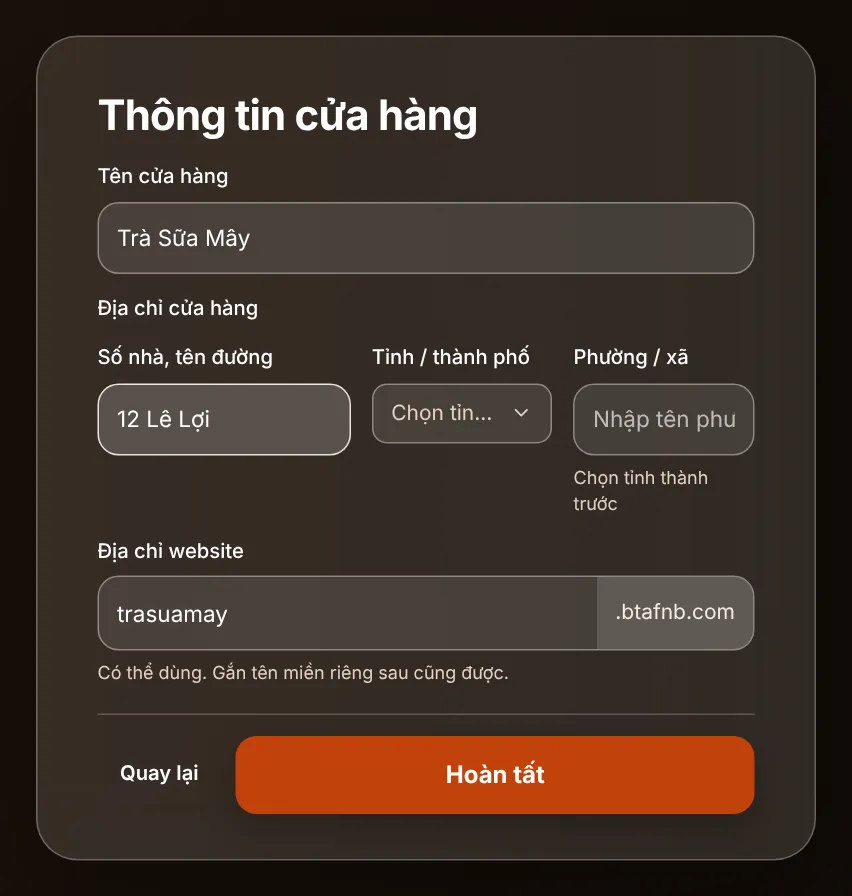
Step 2: shop information - Click Finish. The screen confirms your shop is open. Click Go to dashboard to get started, or Add menu from photo to have AI build your menu from a photo of your paper menu.
After signing up
- Your shop gets a free trial of the Business plan for its first 500 orders, with no time limit (you get extra orders if friends sign up through your referral; cancelled orders don't count). Once the trial orders are used up, pick a plan in Plans and renewal.
- Recommended next steps: create your menu, add a printer, invite staff, then ring up your first order.
Still stuck? Message us on WhatsApp. WhatsApp