 BTA F&B
Plans, renewals and add-ons
For: Owner
Go to Settings › Plans.
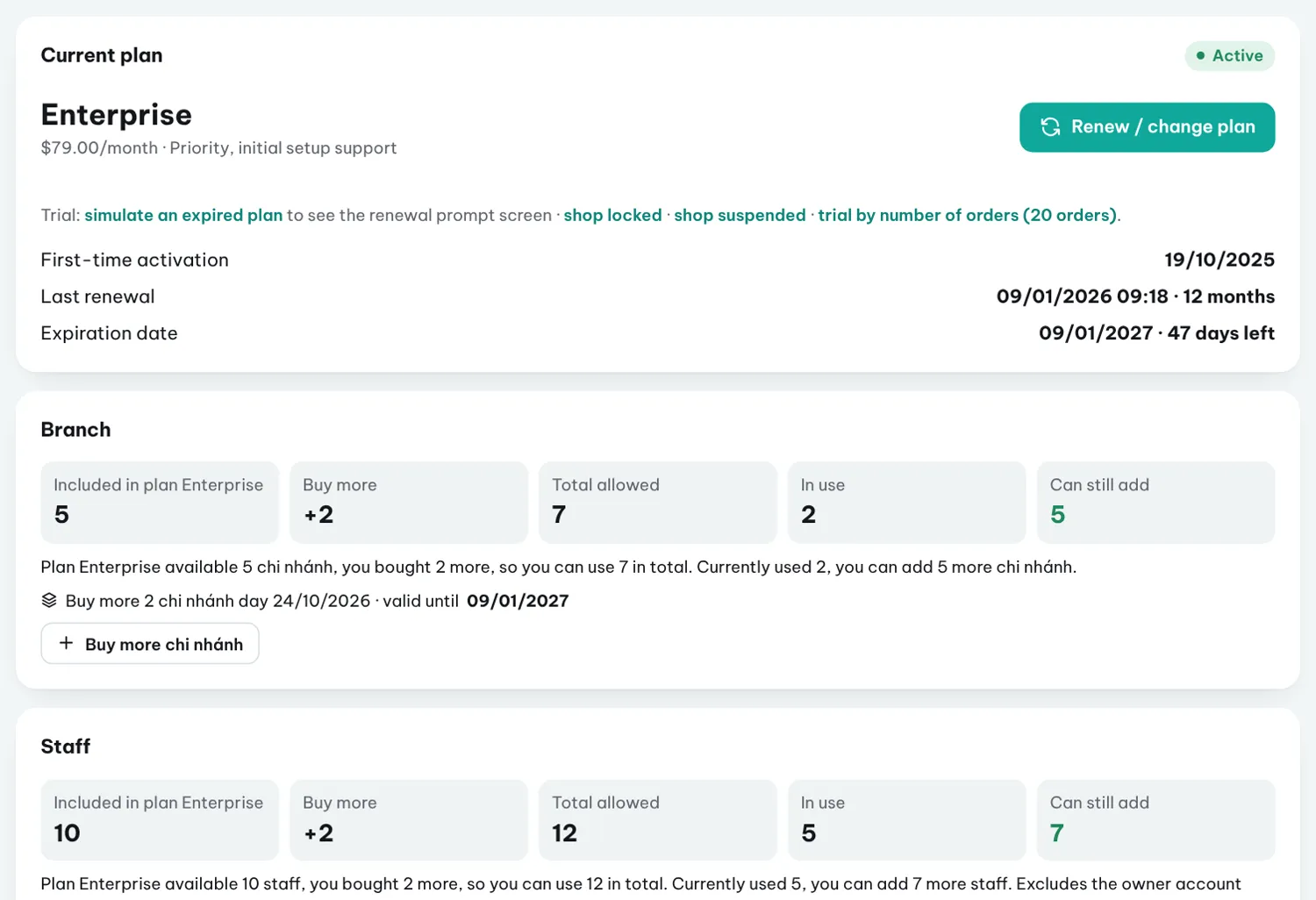
- Current plan, First activated, Last renewed, Expiry date.
- Limits & add-ons: branches, staff (included in the plan, purchased, in use, still available to add), photo storage.
- Purchase history: each renewal and add-on, the amount, status and invoice.
Compare plans on the Pricing page. BTA only charges a subscription fee by plan, never by revenue or number of orders.
Renew or change plan
- Click Renew / change plan, then choose a plan and a term (6, 12 or 24 months).
- Pay by card or PayPal, or with the payment method shown on screen. Your plan is activated automatically once the payment arrives. If you pay by bank transfer, enter the exact amount and reference, and click I have paid if confirmation is needed.
- The plan is activated right after the payment is received, and your data stays as it is.
Changing plan mid-term: the remaining time on your current plan is converted into days on the new plan.
Bonus months on longer terms
When BTA runs a bonus-month promotion, each term shows a green +X bonus months label (1). Choose a term with a bonus and the table shows the total number of months you get (2), while the bottom line shows the expiry date including the bonus months.
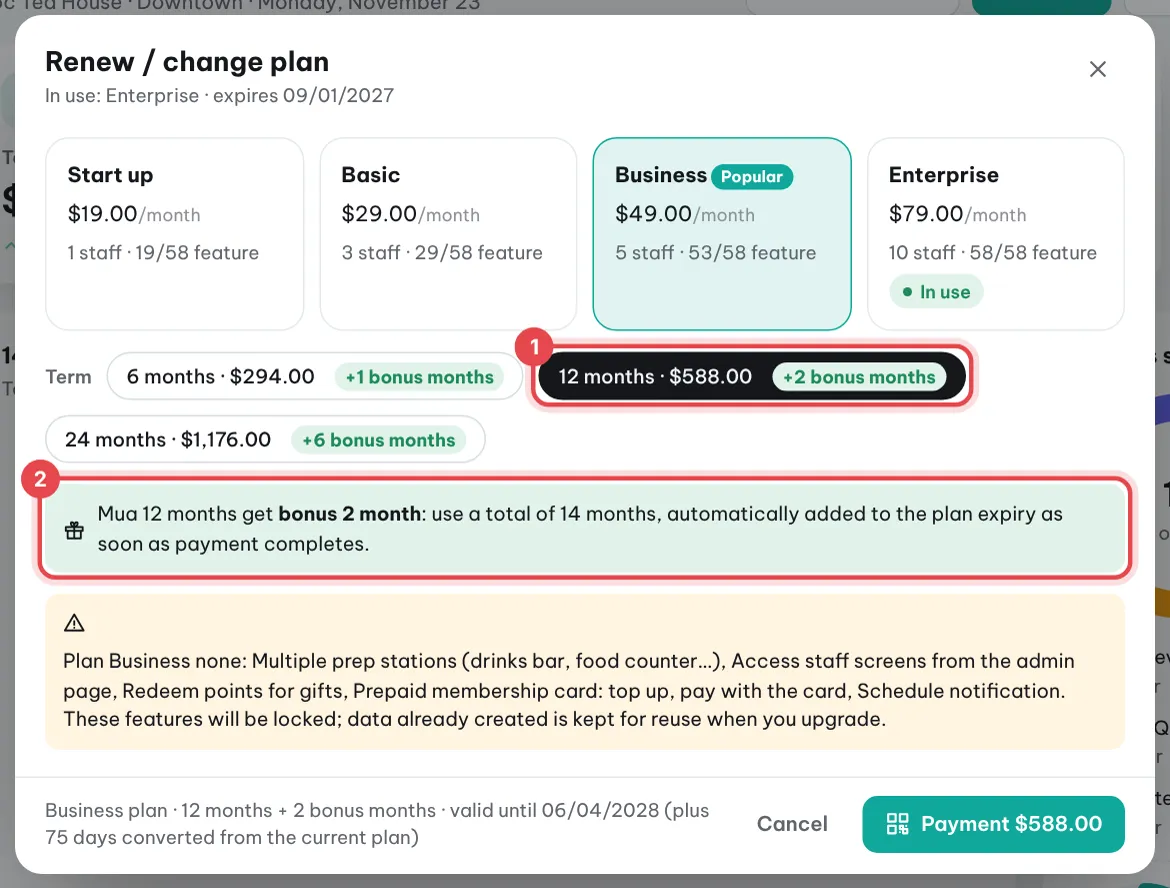
- Bonus months are added to your plan expiry automatically as soon as payment is complete (even when BTA confirms a bank transfer later). You don't need to do anything.
- The number of bonus months stays exactly as it was when you clicked pay, even if the promotion changes before the payment arrives.
- Purchase history shows "Plan … · 12 months + 2 bonus months".
Buy extra branches and staff seats
Click Buy more branches or Buy more staff, choose the quantity and pay. Purchased seats last until your plan expires.
Get an invoice
BTA F&B issues an invoice for every paid purchase. In Purchase history, a purchase with an invoice shows a button with the invoice number: click it to open the PDF.
If you need an invoice made out to a company or business: click Request invoice, then enter the company name, tax ID, address and the email to receive the invoice (within 5 days of payment). If the invoice has already been issued, the system automatically issues a corrected invoice with the buyer's details (once only).
Free trial by number of orders
New venues get their first 500 orders free, with no time limit (more orders if you were referred by a friend). How it is counted:
- Every order on every channel (counter, waiter, table QR, website, customer app) and every branch counts. Cancelled orders don't count.
- The bar at the top of the admin page shows the orders left, for example "120/500 orders left". Store settings › Plans has a Trial orders line.
- When 5% of the orders are left, the owner gets a "… trial orders left" notification.
- When the orders run out, the venue is blocked immediately (no grace period): the admin page, POS, bar/kitchen and waiter screens show a notice; the website and QR ordering stop taking orders. Your data stays as it is.
- Buy a plan at any time to keep selling. Paid plans have no order limit.

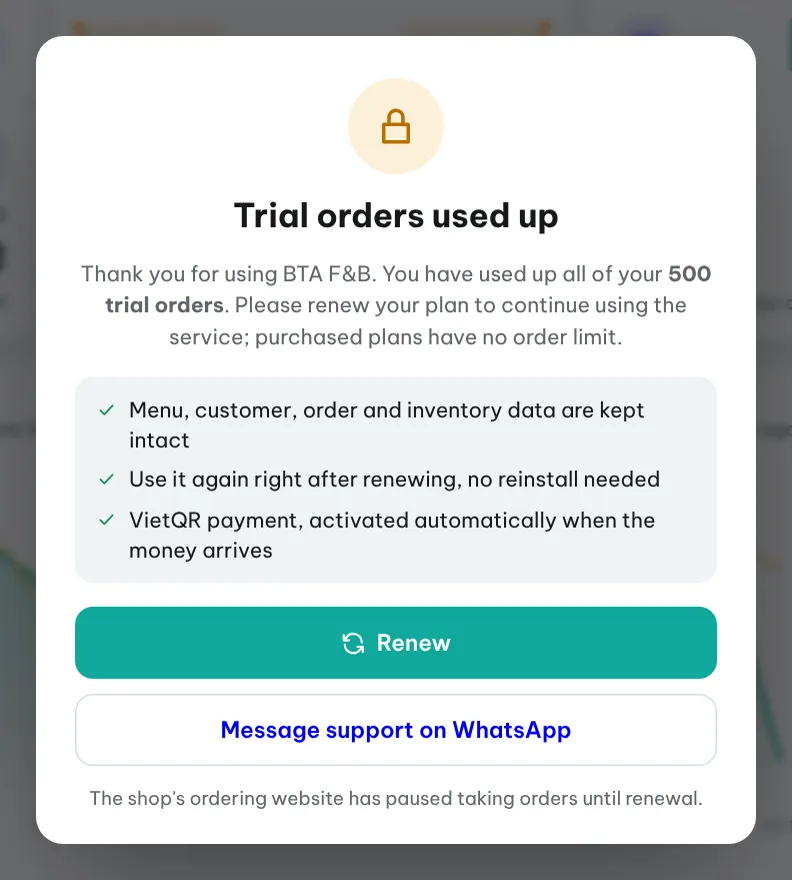
On the admin page (in a browser), people with settings permission see a Renew button in the notice to choose a plan and pay. The BTA FnB app has no Renew button, only a View plans button (see below); open the admin page in a browser to buy a plan.
Venues registered before 15 Nov 2026 keep the 15-day trial they had when they signed up.
What happens when your plan expires?
When a paid plan expires (or the trial orders run out), every screen shows a notice and can no longer be used; the website stops taking orders. Your menu, customer, order and inventory data is kept; once you renew you can use everything again right away, with no need to set anything up again.
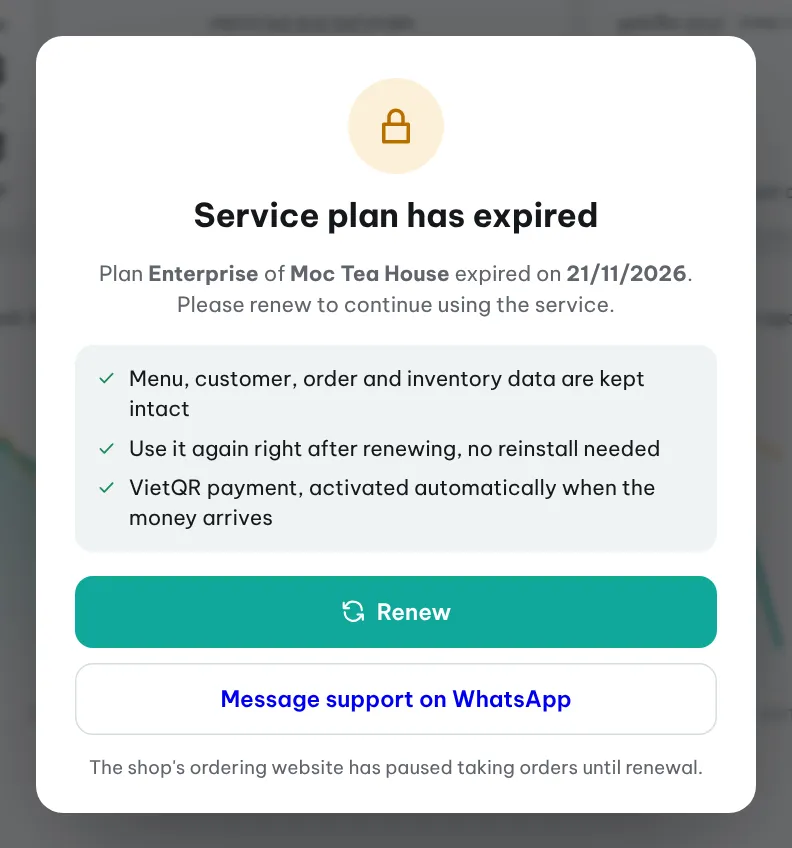
| Screen | Who sees it | Buttons on the notice |
|---|---|---|
| Admin page | Owner, people with Store settings permission | Renew (opens the renew / change plan panel), Message support on WhatsApp |
| Admin page | Other staff | Log out, Message support on WhatsApp. Ask the owner to renew |
| POS, bar/kitchen, waiter, customer display | Everyone | Log out, Message support on WhatsApp. No renewal on the device |
The BTA FnB app has no button to buy a plan: renew in a browser at manage.btafnb.com.
View plans in the BTA FnB app
The BTA FnB app has a View plans button on the trial bar, on the notice shown when the trial ends or the plan has expired, in Settings › Plans, and when you tap a feature that isn't in your plan. Tap it to see the features and limits of each plan, with your current plan highlighted. This panel is for viewing only: there is no buy button or link outside the app.
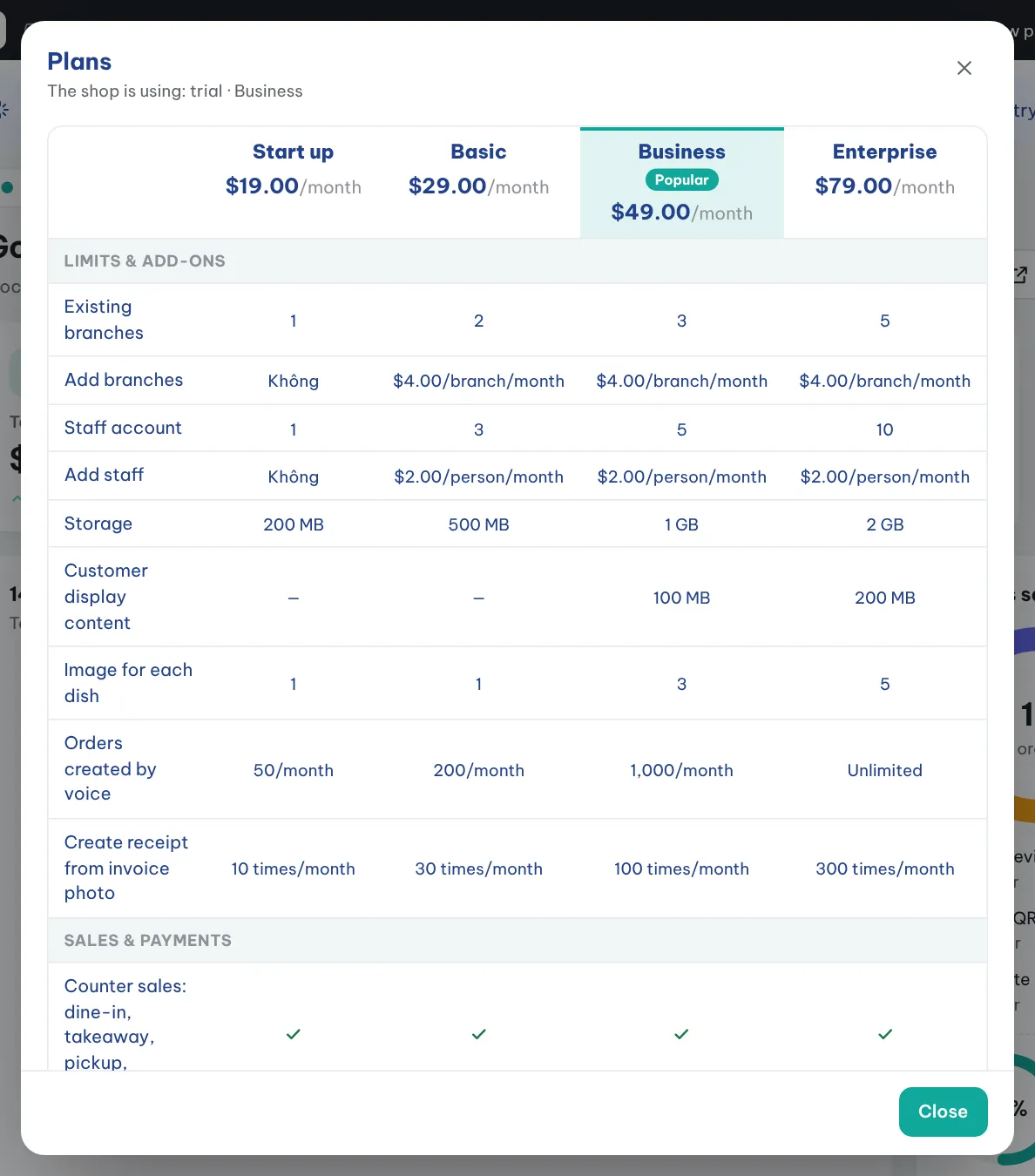
The platform administrator chooses whether plan prices are shown in the app (shown by default).
Locked or suspended stores
BTA F&B can lock or suspend a store. When that happens, every screen (admin page, POS, bar/kitchen, waiter) shows a Store is locked or Store is suspended notice with only a Log out button. You can't renew at this stage: contact BTA F&B for support.
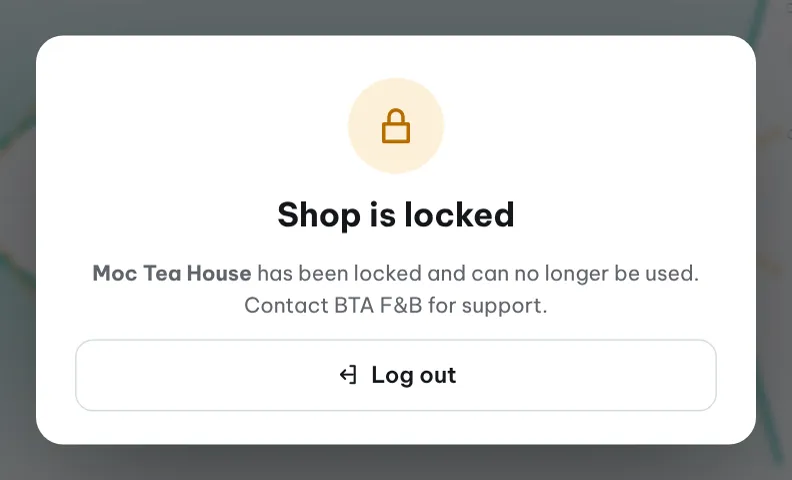
- Locked: you can't log in again, and the login screen says "Store is locked".
- Suspended: you can log in but only see the notice.
- Reopened: log in and use it as normal, your data stays as it is.
Still stuck? Message us on WhatsApp. WhatsApp