 BTA F&B
Closing a shift, counting the drawer
For: Cashier, Owner
- On the POS, tap the ≡ button (Shift menu) at the top of the sales screen and choose Close shift.
- The Close shift · pre-check screen shows any table bills not yet paid and any cards still held. If everything looks fine, tap Continue to cash count.
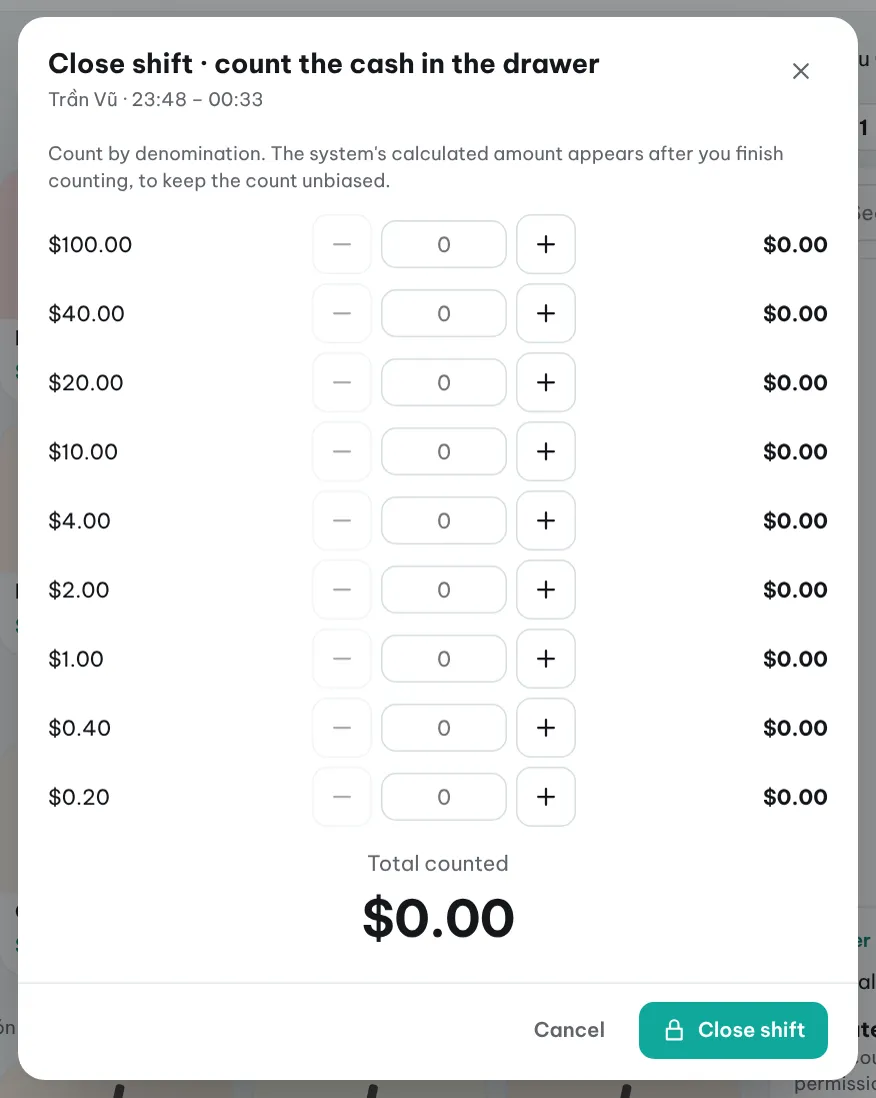
- Count by denomination: enter the number of bills or coins (tap + / − to add or remove 1). Leave a field untouched if you have none of that denomination; it counts as 0. The POS adds everything up as Total counted. The amount the system expects only appears after you finish counting, so the count stays unbiased.
- A shift with no cash (for example, no orders were made): you don't need to enter anything. The POS asks you to Confirm shift closing ("You are closing the shift with $0.00 in cash…"); tap Continue to close, or Recount to go back.
- Tap View result: it is compared with the system's figure (opening cash + cash sales + cash added − expenses / withdrawals). If there is a difference, enter the reason.
- Staff without the Shifts: View cash variance permission skip this step: after counting, tapping Close shift closes it right away, and the POS doesn't show the difference. Managers can see the variance on the Cashier shifts page.
- Confirm closing the shift. A shift closed with a difference above the threshold notifies the owner (see Notifications).
Viewing shifts on the management page
Go to Cashier shifts: Open shifts, Closed shifts, Total variance, Server-held cash (cash collected by servers that has not yet been handed in). The table for each shift shows: opening cash, cash sales, cash added, expenses / withdrawals, system total, counted amount, variance. Click a shift to see order details and revenue by payment method.
The Payments to reconcile section lists bank transfers that don't match any order so you can resolve them.
Still stuck? Message us on WhatsApp. WhatsApp