 BTA F&B
Default printer and assigning printers to each POS device
For: Owner
The POS app does not ask which printer to use. The system chooses in this order:
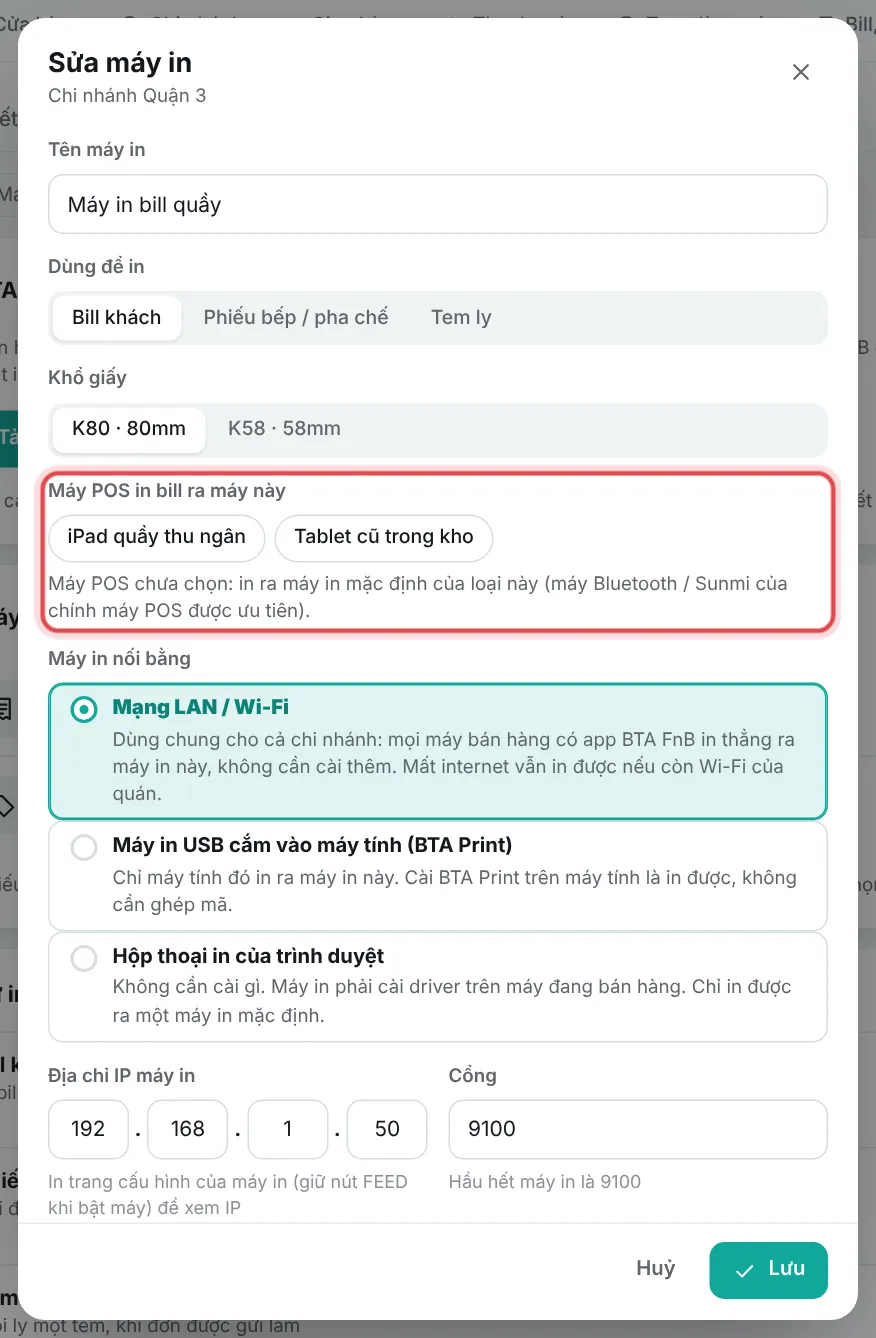
- The printer assigned to this POS device (the POS devices printing to this printer field in the printer settings).
- The Bluetooth / Sunmi printer built into this POS device.
- The printer set as default for that type (receipt, label, kitchen ticket).
- The first printer of that type.
Venues with one printer and several POS devices
Nothing to set up: all POS devices share that printer.
Venues with several printers
For example, counter 1 and counter 2 each have their own receipt printer:
- Open the receipt printer for counter 1 (click Edit), and in POS devices printing receipts to this printer select the POS device at counter 1.
- Do the same for the printer at counter 2.
- Turn on Default receipt printer for one printer, so a new POS device that has not been assigned yet still has somewhere to print.
Kitchen tickets by station: choose a printer for each station in Prep stations. Stations without a printer print to the printer of type "Kitchen ticket".
Still stuck? Message us on WhatsApp. WhatsApp