 BTA F&B
Send notifications to customers
For: Owner
Notifications reach member customers (those with an account on your restaurant's website who have notifications turned on) through the notification inbox on the website and browser notifications.
Go to Marketing and click Create notification.
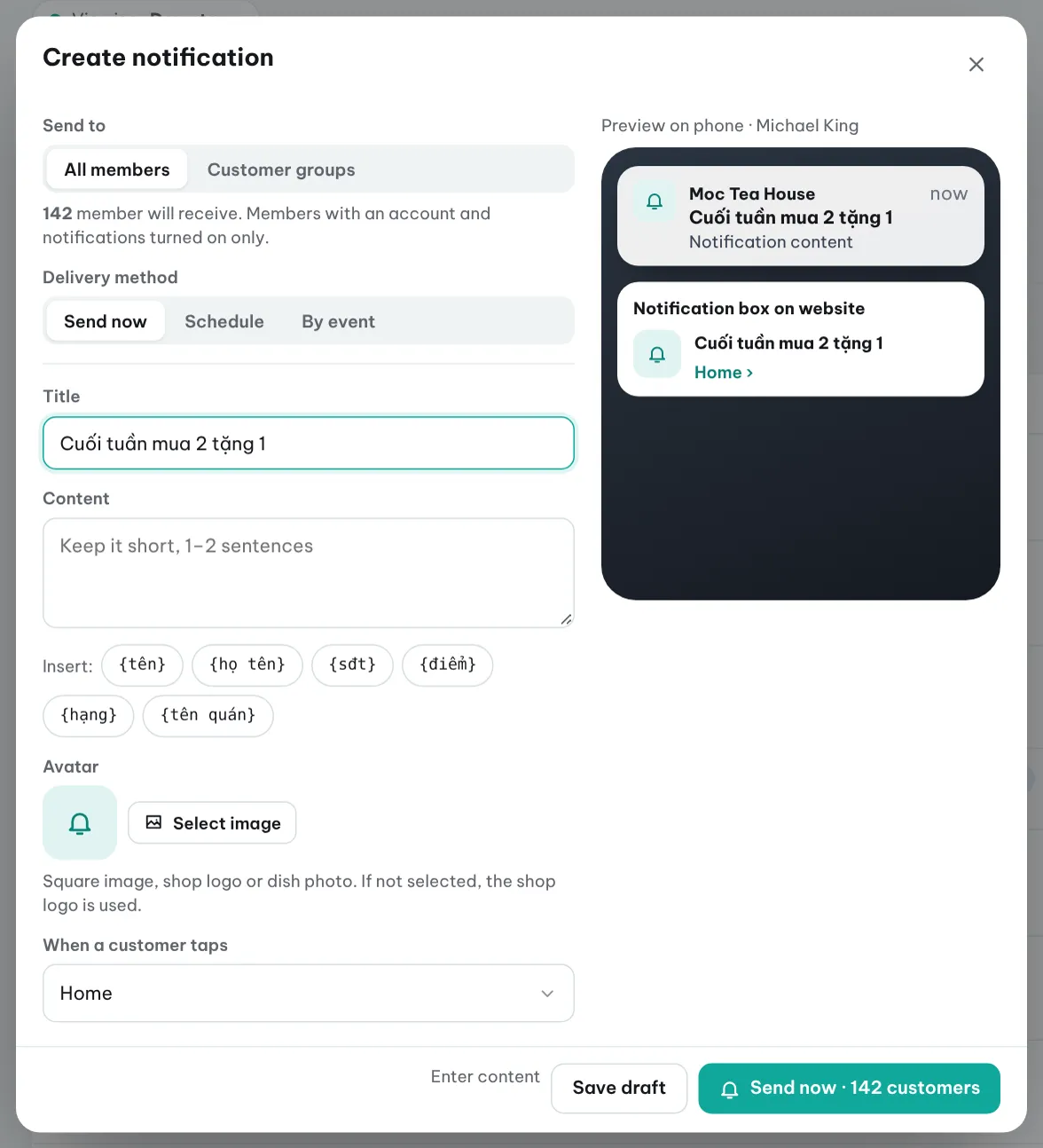
- Send to: All members or Customer group (see Customer groups). The system shows how many people will receive it.
- Delivery: Send now, Schedule (pick a time), or Event-based.
- Title, Message. Click Insert to add
{first name},{full name},{phone},{points},{tier},{restaurant name}; each customer sees their own information. - Thumbnail (logo or dish photo), When the customer clicks which page opens (home, dish, promotions, etc.).
- Check the preview on the right, then click Send now or Save draft.
Notifications table: status (Running, Scheduled, Sent, Draft, Paused), Received, Viewed, Clicked.
Still stuck? Message us on WhatsApp. WhatsApp