 BTA F&B
Promo codes, price overrides, comped items
For: Cashier, Owner
Applying a promo code
Tap Enter promo code in the cart. The list of active codes appears with the discount amount for the current order; codes that don't meet the conditions show the reason. Select a code or type the code the customer gives you. Tap Remove code to take it off.
Automatic promotions (percentage discounts, Buy X Get Y, fixed price…) don't need a code: once the conditions are met, the discount is applied automatically. See the Promotions group.
Overriding the price of an item
- Tap the price tag icon next to the item in the cart (Override price for this item).
- Enter the new price and choose a Reason: Regular customer, Remade item, Comped for customer, Compensation for missing item, or Other (please specify).
- Tap Apply. To restore the original price, reopen the item and tap Remove price override.
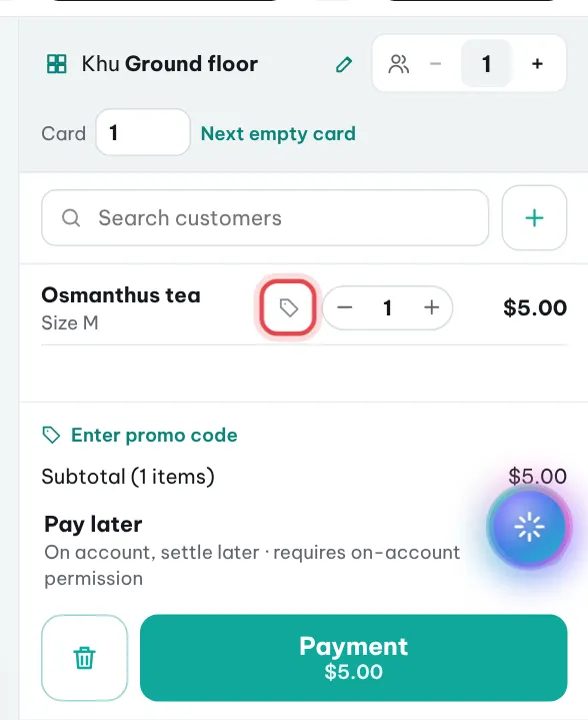
Comping an item: override the price to 0 with the reason Comped for customer. Items redeemed with points and Buy X Get Y gifts are automatically recorded as gifts by the system.
Still stuck? Message us on WhatsApp. WhatsApp