 BTA F&B
Automatic promotion campaigns
For: Owner
Campaigns are deducted from the order automatically when the conditions are met, so customers don't need to enter a code. Go to Promotions and click Create campaign.
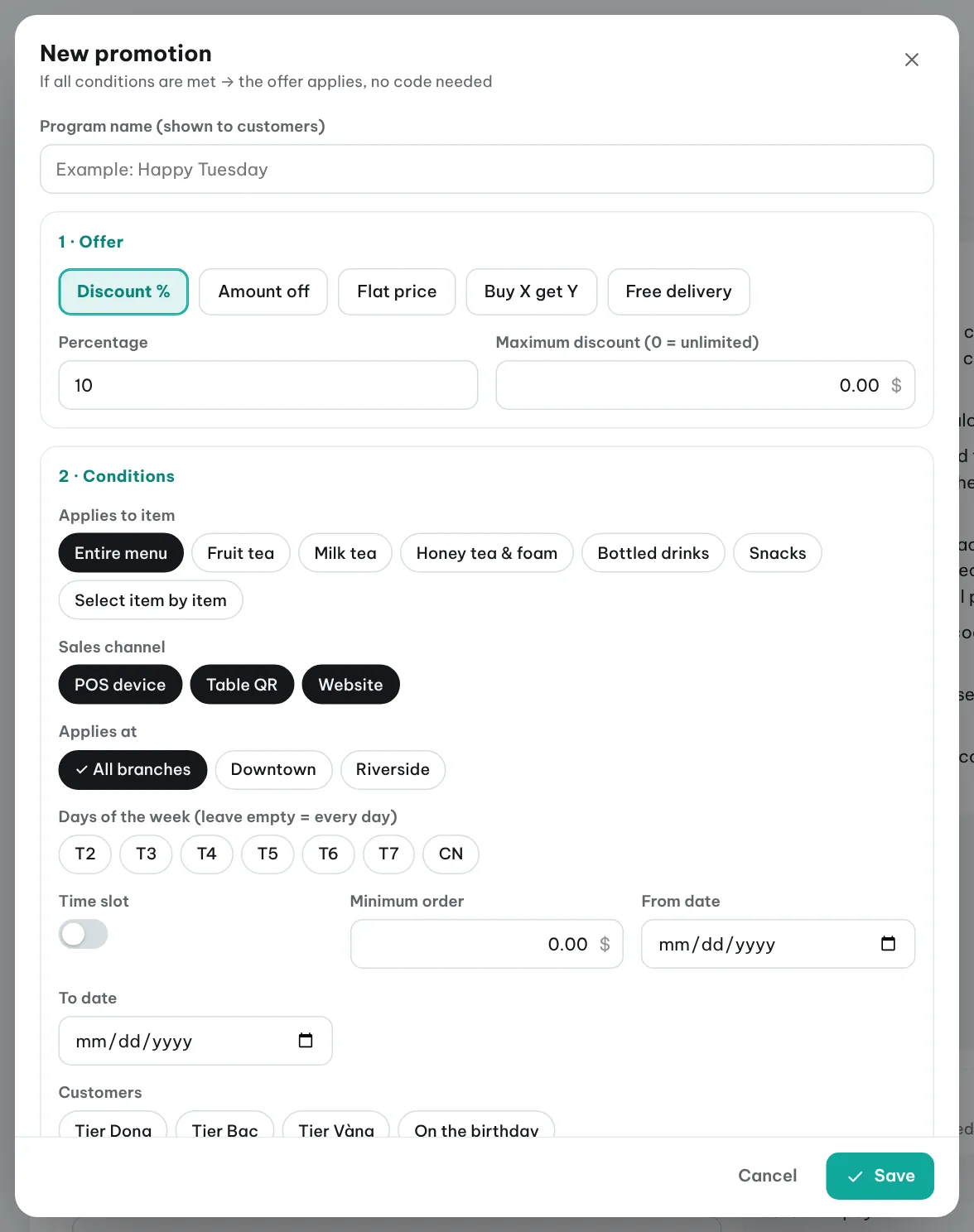
1 · Offer
Set the Program name (shown to customers) and choose a type: Percentage off (with Maximum discount), Amount off, Fixed price per item, Buy X get Y, Free delivery. Choose whether it applies to the whole order or to an item group / specific items.
2 · Conditions
- Sales channel: POS, QR at table, website. Applies at: which branches.
- Days of the week, Time slot (for example happy hour 2:00 PM–5:00 PM), From date / To date.
- Minimum order.
- Customers: membership tier, On their birthday, or only for a customer group.
3 · Stacking
- Stack with other programs: when on, it can be combined with others; when off, the program applies on its own.
- Allow use with promo codes: when off, customers can't enter a code while this program is applied.
- Priority order: the lower number is calculated first when stacking.
4 · Loss check
The system warns you which items would be sold below cost when the program is applied.
How the system chooses promotions
- Only programs that are turned on and match the day and time, channel, item, minimum order, and tier / birthday are considered. If an order is a little short of the minimum, the POS and website show a "Add … more" reminder.
- The system compares "all stackable programs combined" with "each non-stackable program on its own" and picks the option that gives the biggest discount to the customer. Programs that are skipped show the reason on the POS.
- Stacking is calculated in sequence on the remaining price: a $2.50 drink with 15% off becomes $2.13, then a further 30% off brings it to $1.49.
- Maximum discount per order (% of order value, and no more than $…) caps the total of programs and codes.
Still stuck? Message us on WhatsApp. WhatsApp